
SSH Tunnels and Port Forwarding: -L, -R, -D, ProxyJump and a Config That Stays Up
The staging database listens on 127.0.0.1:5432 on a box you can only reach through a bastion. Your GUI client wants a host and a port. Or the reverse: a webhook provider needs to hit the app on your laptop, and the only public machine you have is a VPS. Both problems have the same answer, and it's already installed on every machine you own: OpenSSH port forwarding.
The flags are short and easy to mix up. Here's how each one works, what the defaults are, and a config file that keeps a tunnel from silently dying. Everything below comes from the OpenSSH manual pages (ssh(1), ssh_config(5), sshd_config(5), sshd(8)) and the release notes. I haven't run these commands against live servers for this post; the hostnames are placeholders.
Which version you're on
As of November 2026 the newest portable release is OpenSSH 10.6p2, out on 5 November 2026 with a fix for a password authentication bypass that affects Linux builds using musl libc with PAM disabled. Distros lag behind, and that matters for some of the options below. The package indexes show Ubuntu 24.04 on 9.6p1 and Ubuntu 26.04 on 10.2p1 (packages.ubuntu.com), and Debian 13 "trixie" on 10.0p1 (packages.debian.org). Run ssh -V to see what your client is.
Two changes from the 10.x series show up in tunnel work. OpenSSH 10.0 made the hybrid post-quantum mlkem768x25519-sha256 the default key agreement and removed DSA. OpenSSH 10.1 added a warning when a connection negotiates a key agreement that isn't post-quantum, controlled by WarnWeakCrypto in ssh_config. If an old jump host suddenly makes your client print a warning, that's why. Upgrade the server rather than turning the warning off; if you must silence it, WarnWeakCrypto no-pq-kex disables just that one.
The three forwards in one picture
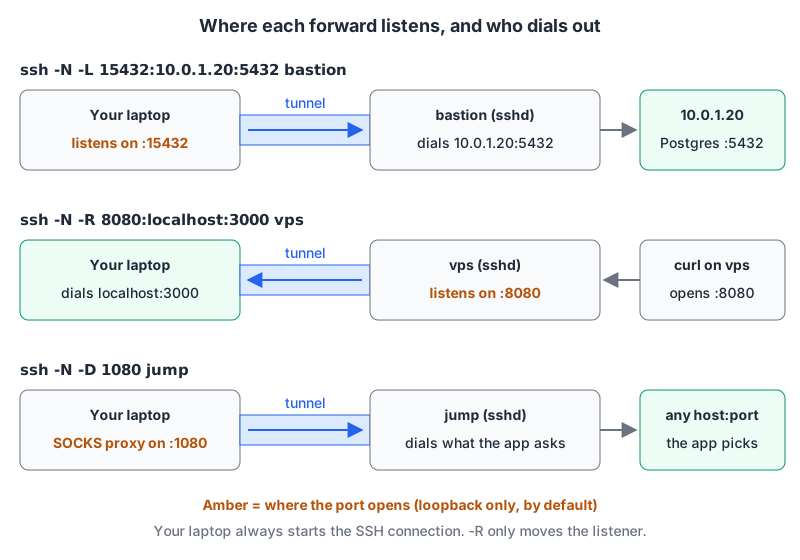
The trick to remembering them: the letter tells you where the listening socket opens. The other end always does the dialling.
-L: reach something the server can reach
ssh -N -L 15432:10.0.1.20:5432 bastionssh(1) says -L forwards "connections to the given TCP port or Unix socket on the local (client) host" over the secure channel. Your laptop listens on 15432. When psql -h 127.0.0.1 -p 15432 connects, the bastion opens a TCP connection to 10.0.1.20:5432 and pipes the bytes through.
The part people get wrong: 10.0.1.20 is resolved from the server's side. If the database runs on the bastion itself, write localhost:5432, and "localhost" means the bastion's loopback, not yours. -N tells ssh not to run a remote command, which the man page describes as "useful for just forwarding ports."
-R: let the server reach you
ssh -N -R 8080:localhost:3000 vpsNow the listener is on the VPS. Anything on the VPS that connects to port 8080 gets carried back to your laptop, which dials localhost:3000, your dev server. The SSH connection still starts from your laptop; only the listener moves.
By default this is less useful than people expect. ssh(1) says "TCP listening sockets on the server will be bound to the loopback interface only," so the outside world can't hit port 8080. Binding to a public address "will only succeed if the server's GatewayPorts option is enabled," and sshd_config(5) lists its default as no. I'd leave it that way and put a reverse proxy on the VPS in front of 127.0.0.1:8080 instead. If you just want to show a local app to someone for an afternoon, a dedicated tool is less fiddly; we compared the options in Cloudflare Tunnel for local development.
Pass port 0 and the server picks a free port and reports it back: the man page says "the listen port will be dynamically allocated on the server and reported to the client at run time."
-D: a SOCKS proxy through the server
ssh -N -D 1080 jump-D opens a local port and, per ssh(1), "ssh will act as a SOCKS server" (SOCKS4 and SOCKS5 are supported). Point a browser or curl --socks5-hostname 127.0.0.1:1080 at it and every request leaves from the jump host. It's handy for poking at internal dashboards without a forward per service. A -R with only a port and no destination does the mirror image: a SOCKS proxy that listens on the server.
Jump hosts with -J and ProxyJump
The old habit is ssh -A into a bastion, then ssh again from there. That puts your agent on a machine you don't fully control, and ssh(1) is blunt about the risk: users who can bypass file permissions on the remote host "can access the local agent through the forwarded connection."
-J avoids that. ssh(1) describes it as making an SSH connection to the jump host "and then establishing a TCP forwarding to the ultimate destination from there."
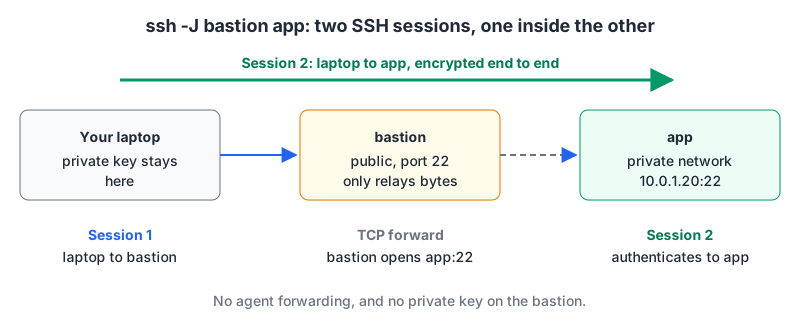
The second SSH session runs inside the first, end to end, so the bastion just relays encrypted bytes and never needs your private key. Several hops work too: "Multiple jump hops may be specified separated by comma characters."
One gotcha from the man page: options you pass on the command line "generally apply to the destination host and not any specified jump hosts." If the bastion needs a different user or key, set that in ~/.ssh/config. Since OpenSSH 10.3, -J and -oProxyJump also validate user and host names given on the command line, per the release notes.
A config that stays up
Typing the flags is fine once. For a tunnel you use daily, put it in ~/.ssh/config:
Host bastion
    HostName bastion.example.com
    User deploy
    IdentityFile ~/.ssh/id_ed25519

Host staging-db
    HostName 10.0.1.20
    User deploy
    ProxyJump bastion
    LocalForward 127.0.0.1:15432 127.0.0.1:5432
    SessionType none
    ExitOnForwardFailure yes
    ServerAliveInterval 15

Host *
    ServerAliveInterval 60
Then ssh staging-db opens the tunnel. Unlike the -L example above, this one jumps through the bastion to the database host itself and forwards to that host's loopback, so Postgres can stay bound to 127.0.0.1. Here's what each line is for, according to ssh_config(5):
SessionType noneis "same as the-Noption": no shell, just the forward.ExitOnForwardFailure yes. The default isno, which means that if port 15432 is already taken, ssh stays connected anyway, with no tunnel. You'll then spend ten minutes wondering why your client hangs. Withyes, ssh terminates the connection when it can't set up a requested forward. ssh(1) adds that a client started with-fand this option "will wait for all remote port forwards to be successfully established" before going to the background.ServerAliveInterval 15. The default is 0, so no keepalives are sent. With 15 and the defaultServerAliveCountMaxof 3, the man page says ssh "will disconnect after approximately 45 seconds" if the server stops responding. These messages go through the encrypted channel, so unlikeTCPKeepAlivethey aren't spoofable.Host *goes last. "For each configuration directive, the first specified value will be used," so specific hosts go at the top and general defaults at the end. TheServerAliveInterval 60inHost *doesn't override the 15 above it.
Note that LocalForward here binds to 127.0.0.1 explicitly. Without a bind address, the client binds "in accordance with the GatewayPorts setting," whose client-side default is loopback. Writing it out makes the intent obvious to the next reader.
To check what ssh will actually use, run ssh -G staging-db. ssh(1) says -G makes ssh "print its configuration after evaluating Host and Match blocks and exit", so nothing connects. Pipe it through grep -i -E 'proxyjump|localforward|serveralive' to see the lines that matter. I couldn't run it for this post (the ssh binary is blocked in the environment I wrote it in), so the config above is untested; run -G yourself before trusting it.
Sharing one connection
If you open several shells and tunnels to the same host, connection multiplexing saves a handshake each time. ControlMaster, ControlPath and ControlPersist set it up, and ssh -O check host asks the master whether it's alive. -O forward and -O cancel add or remove forwards on the running master. OpenSSH 10.3 added -O conninfo and -O channels to report on the master connection and its open channels.
There's also the escape command line, ~C, which lets you add a -L to an open session. It's off unless you enable it: ssh_config(5) says "By default, the command line is disabled," controlled by EnableEscapeCommandline.
Locking it down on the server side
If you run the server, you decide which forwards are allowed. From sshd_config(5):
| Option | Default | What it controls |
|---|---|---|
AllowTcpForwarding | yes | no, local or remote to restrict forwarding |
GatewayPorts | no | Whether -R listeners can bind to non-loopback addresses |
PermitOpen | any | Destinations that -L may connect to |
PermitListen | any | Addresses and ports -R may listen on |
DisableForwarding | not set | Overrides all forwarding options at once |
Per-key restrictions in authorized_keys are often better, because they apply only to the key that needs the tunnel. sshd(8) documents restrict ("disable port, agent and X11 forwarding, as well as disabling PTY allocation"), port-forwarding to switch forwarding back on, and permitopen="host:port" to pin the destination. A key that exists only to reach the staging database could look like this:
restrict,port-forwarding,permitopen="127.0.0.1:5432" ssh-ed25519 AAAA... tunnel-onlyHost names in permitopen must be literal; the man page says "No pattern matching or name lookup is performed." A port of * matches any port. If you need a fresh key for this, run ssh-keygen -t ed25519, or use our SSH key generator, which creates Ed25519 keys in the native OpenSSH format in the browser. The SSH keys post covers passphrases and ssh-agent.
Troubleshooting
- The local port won't bind. Something already holds it. Pick another port, or find the culprit with
lsof -i :15432. WithExitOnForwardFailure yes, you'll get a clear failure instead of a half-working session. - The server refuses a
-R. The port is in use on the server, orAllowTcpForwardingorPermitListenblocks it. Try-vto see the server's answer. - The tunnel is up but connections fail straight away. The server couldn't reach the destination. Remember the host in
-Lis resolved on the server, so test from there withnc -vz 10.0.1.20 5432. - The forward works but nothing outside can reach it. That's the loopback default doing its job. Check
GatewayPortsbefore changing it. - Which port is that again? Our port reference lists 58 common service ports, Postgres, Redis and the Kubernetes API included.
When to stop using tunnels
An SSH tunnel is perfect for one person reaching one service. It gets awkward when a team needs the same access, when tunnels must survive laptop sleep, or when you're handing out keys just so people can forward a port. At that point a private network does the job better. Tailscale gives each machine a stable address without public ports.
My rule: if you've written a script whose only job is to keep ssh -L running, you've outgrown it.
Written by AIDToolStack Editorial
Researched from official documentation, specifications and vendor pages, listed under Sources below. Last checked November 2026.
Sources
Related Posts
Explore on AIDToolStack
Discover tools and servers featured in our directory.
AI Tools
MCP Servers
Sponsor Our Newsletter
Reach thousands of developers who are actively evaluating AI tools, MCP servers, and dev infrastructure. Our weekly newsletter goes to engaged technical decision-makers.
All sponsored content is clearly labeled per our editorial policy.