
Configuring MCP Servers in Claude Code, Cursor and VS Code
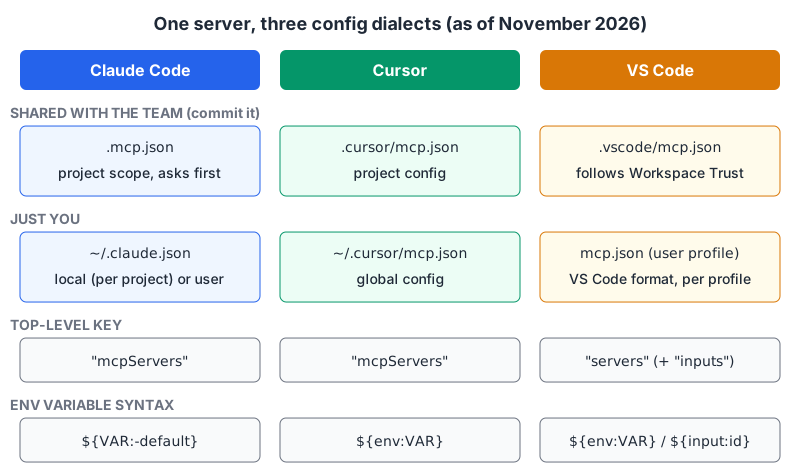
You find an MCP server you want, say the Playwright server, and the README gives you one JSON snippet. You paste it into Claude Code, Cursor and VS Code and get three different outcomes: one works, one silently ignores it, one complains about a key it doesn't recognise. The servers are the same. The config dialects aren't.
This post is the cheat sheet I wanted: where each client keeps its config, how scopes work, how to pass secrets without committing them, and how remote (HTTP) servers differ from local (stdio) ones. Everything below is from each vendor's own docs as of November 2026. These clients ship fast, so check the linked page if a flag doesn't behave as described.
If you're new to the moving parts (hosts, clients, servers, transports), start with what MCP is and come back.
stdio or HTTP: decide first
Every server entry is one of two shapes.
- stdio: the client launches a process (
npx,uvx,docker run, a binary) and talks to it over stdin/stdout. It runs as you, on your machine, with your files and your network. Credentials usually go in as environment variables. - Streamable HTTP: the client connects to a URL. The server runs somewhere else, and authentication is a header or an OAuth sign-in.
There's also the older HTTP+SSE transport. The current spec revision, 2026-07-28, lists it as Deprecated, with Streamable HTTP as the migration path. Only configure sse if a server offers nothing else.
The security trade is the real decision. A stdio server is code you're executing locally, so treat installing one like installing any CLI tool from the internet. The MCP security best practices say a client offering one-click local setup must show the exact command, untruncated, and get explicit approval before running it.
Claude Code
Claude Code does most MCP setup through its CLI. From the Claude Code MCP docs:
# stdio: everything after -- is the server command
claude mcp add --env AIRTABLE_API_KEY=YOUR_KEY --transport stdio airtable \
  -- npx -y airtable-mcp-server

# remote HTTP server
claude mcp add --transport http notion https://mcp.notion.com/mcp

# remote server with a static bearer token
claude mcp add --transport http secure-api https://api.example.com/mcp \
  --header "Authorization: Bearer your-token"
Two details from the docs that trip people up. The -- separates Claude Code's own options from the server's command line. And --env accepts several KEY=value pairs, so if the server name comes right after it, the CLI reads the name as another pair. Put another option, like --transport stdio, in between.
Scopes
--scope (or -s) decides where the entry lands:
| Scope | Stored in | Applies to | Shared |
|---|---|---|---|
local (default) | ~/.claude.json, under the project path | this project | no |
project | .mcp.json in the repo root | this project | yes, via git |
user | ~/.claude.json | all your projects | no |
If the same name appears in more than one place, local beats project beats user, and the winning entry is used whole. Fields aren't merged, so a local override has to be complete.
Project scope is the one to commit. In interactive sessions Claude Code asks before using servers from .mcp.json; claude mcp reset-project-choices clears those answers. The docs also note that claude -p runs and Agent SDK sessions load project servers without asking. If you run headless Claude Code in CI against untrusted branches, that matters: use --strict-mcp-config or disabledMcpjsonServers to control what loads.
Secrets in .mcp.json
Claude Code expands ${VAR} and ${VAR:-default} in command, args, env, url and headers:
{
  "mcpServers": {
    "api-server": {
      "type": "http",
      "url": "${API_BASE_URL:-https://api.example.com}/mcp",
      "headers": { "Authorization": "Bearer ${API_KEY}" }
    }
  }
}
An unset variable with no default stays as the literal ${VAR} text and you get a warning, which beats a silent empty header. A nice safety touch: in remote url and headers, credential variables like ANTHROPIC_API_KEY expand to empty, so a repo can't trick your client into sending your Anthropic key to a server it names.
One gotcha: an entry with a url but no type is treated as stdio and skipped. Always write "type": "http" ("streamable-http" is accepted as an alias).
OAuth and housekeeping
For OAuth-protected remote servers, run /mcp inside a session or claude mcp login <name> from the shell. If a server doesn't support dynamic client registration, you can pass --client-id, --client-secret and --callback-port when adding it. claude mcp list shows health, claude mcp get <name> shows one entry. The docs also list MCP_TIMEOUT for slow-starting servers and MAX_MCP_OUTPUT_TOKENS for tools that return a lot (Claude Code warns above 10,000 tokens of tool output and caps it at 25,000 by default).
Cursor
Cursor reads two files, per the Cursor MCP docs: .cursor/mcp.json in the project and ~/.cursor/mcp.json for everything. Both use the familiar mcpServers key:
{
  "mcpServers": {
    "my-local": {
      "type": "stdio",
      "command": "npx",
      "args": ["-y", "mcp-server"],
      "env": { "API_KEY": "${env:MY_API_KEY}" }
    },
    "my-remote": {
      "url": "https://mcp.example.com/mcp",
      "headers": { "Authorization": "Bearer ${env:MY_TOKEN}" }
    }
  }
}
The variable syntax is different from Claude Code's: ${env:NAME}, plus ${userHome}, ${workspaceFolder} and ${workspaceFolderBasename}. Cursor also supports envFile (for example "${workspaceFolder}/.env"), but only for stdio servers. That's the simplest way to keep keys out of the committed file: commit mcp.json, gitignore .env. Our guide to environment variables and secrets covers the wider habit.
For remote servers Cursor does OAuth with authorization code and PKCE, registering itself as a public client through dynamic registration. When a provider wants a fixed client, add an auth object with CLIENT_ID (required), CLIENT_SECRET and scopes, and register Cursor's redirect URL with the provider. The docs give http://localhost:8787/callback for the desktop app.
By default Cursor asks you to approve each MCP tool call, and you can expand the call to inspect the arguments. Do that, at least until you trust a server.
VS Code
VS Code is where things have moved the most. The VS Code MCP configuration reference now describes two formats:
- VS Code format:
.vscode/mcp.jsonin the workspace, ormcp.jsonin your user profile. Top-level key isservers, notmcpServers. - Portable format:
.mcp.jsonat the workspace root or~/.copilot/mcp-config.json(or$COPILOT_HOME/mcp-config.json), withmcpServers, used by Copilot harness sessions. The MCP servers page says the workspace-root.mcp.jsonis offered when the experimentalchat.mcp.workspaceRootConfig.enabledsetting is on.
Pasting a Claude-style mcpServers block into .vscode/mcp.json is the classic "why isn't it loading" mistake. The VS Code format looks like this:
{
  "inputs": [
    {
      "type": "promptString",
      "id": "perplexity-key",
      "description": "Perplexity API Key",
      "password": true
    }
  ],
  "servers": {
    "playwright": {
      "type": "stdio",
      "command": "npx",
      "args": ["-y", "@playwright/mcp@latest"]
    },
    "context7": {
      "type": "http",
      "url": "https://mcp.context7.com/mcp"
    },
    "perplexity": {
      "type": "stdio",
      "command": "npx",
      "args": ["-y", "example-perplexity-mcp"],
      "env": { "PERPLEXITY_API_KEY": "${input:perplexity-key}" }
    }
  }
}(example-perplexity-mcp is a placeholder package name. The inputs and env wiring is the part taken from the docs.)
The inputs array is VS Code's best feature here. VS Code prompts for the value when the server needs it, "password": true hides it as you type, and the secret never sits in the file. The reference notes a catch: servers that need ${input:...} values aren't forwarded to Copilot harness sessions. For environment variables the VS Code format uses ${env:NAME}; the portable files use ${NAME} or ${NAME:-default}.
Two more VS Code-only features are worth knowing. Setting "sandboxEnabled": true on a stdio server runs it with filesystem and network restrictions you define, on macOS and Linux only. And a dev key with watch restarts a server when its files change, which is handy if you're building your own server.
Trust works through Workspace Trust, per the manage MCP servers page: servers in .vscode/mcp.json or .mcp.json don't start in Restricted mode, and in a trusted workspace they can start without a separate prompt, including after the config changes. So review a repo's MCP config before you trust the folder. Run MCP: List Servers and pick Show Output to see a server's logs, and MCP: Reset Trust to undo trust decisions for servers outside the workspace.
Same server, three files
Here's the Context7 server (a remote HTTP server, URL from the VS Code docs) in each dialect:
| Claude Code | Cursor | VS Code | |
|---|---|---|---|
| Command | claude mcp add -s project --transport http context7 https://mcp.context7.com/mcp | edit the file | MCP: Add Server or edit the file |
| Shared file | .mcp.json | .cursor/mcp.json | .vscode/mcp.json |
| Key | mcpServers | mcpServers | servers |
| Entry | {"type":"http","url":"…"} | {"url":"…"} | {"type":"http","url":"…"} |
| Env var | ${API_KEY} | ${env:API_KEY} | ${env:API_KEY} or ${input:id} |
If your team uses more than one client, I'd keep one source of truth (say .mcp.json for Claude Code) and generate the other two in a small script rather than editing three files by hand. The differences are mechanical: rename the top-level key, rewrite ${VAR} to ${env:VAR}. For picking between the clients themselves, see Cursor vs Claude Code.
Before you commit an MCP config
- Every remote entry has an explicit
type(Claude Code skipsurl-only entries as stdio). - No literal tokens. Use
${VAR}/${env:VAR},envFile, or VS Codeinputs. - Pin stdio packages to a version where you can, instead of
@latest, so a new release can't change what runs on everyone's machine. - Prefer a remote server with OAuth over a stdio server holding a long-lived API key, when the vendor offers both.
- Check headless paths:
claude -ploads project servers without asking. - Read the command each stdio entry runs. If you wouldn't run it in your terminal, don't put it in a file your editor runs for you.
Written by AIDToolStack Editorial
Researched from official documentation, specifications and vendor pages, listed under Sources below. Last checked November 2026.
Sources
- code.claude.com/docs/en/mcp
- cursor.com/docs/context/mcp
- code.visualstudio.com/docs/copilot/customization/mcp-servers
- code.visualstudio.com/docs/agents/reference/mcp-configuration
- code.visualstudio.com/docs/agents/run/manage-mcp-servers
- modelcontextprotocol.io/specification/versioning
- modelcontextprotocol.io/specification/2026-07-28/changelog
- modelcontextprotocol.io/docs/2026-07-28/tutorials/security/security_best_practices.md
Related Posts
Explore on AIDToolStack
Discover tools and servers featured in our directory.
AI Tools
MCP Servers
Sponsor Our Newsletter
Reach thousands of developers who are actively evaluating AI tools, MCP servers, and dev infrastructure. Our weekly newsletter goes to engaged technical decision-makers.
All sponsored content is clearly labeled per our editorial policy.