
Semantic Versioning and npm Version Ranges: ^, ~, Prereleases and Lockfiles
package.json says "semver": "^7.7.0". node_modules has 7.8.6. Your colleague's machine, set up in June, has 7.8.5. Nobody changed anything, and all three are "correct". That gap between the range you wrote and the version that runs is where most dependency surprises come from, and closing it takes three pieces: what the version number promises, how npm turns a range into a list of acceptable versions, and what the lockfile does with that list.
What a version number promises
Semantic Versioning 2.0.0 is a contract about the public API. Given MAJOR.MINOR.PATCH:
- PATCH goes up for backward compatible bug fixes only.
- MINOR goes up for new backward compatible functionality, and also when something is marked deprecated. Patch resets to 0.
- MAJOR goes up for any backward incompatible change. Minor and patch reset to 0.
Two clauses get forgotten. First, 0.y.z is initial development and "Anything MAY change at any time", so a 0.x package makes no compatibility promise at all. Second, the FAQ is clear about mistakes: if you ship a breaking change in a minor release, you don't edit history. You release another minor version that restores compatibility, and tell people which version was bad. On npm you couldn't reuse the number anyway; the unpublish policy says once package@version has been used, it can never be used again.
A version can also carry a prerelease tag (2.0.0-rc.1) and build metadata (2.0.0+sha.5114f85). Prereleases sort before the release they lead up to. Build metadata is ignored for ordering entirely. Within prereleases, numeric parts compare as numbers, so alpha.10 comes after alpha.2. You can check this with the semver CLI from node-semver, which describes itself as "the semantic versioner for npm". Everything below was run with node-semver 7.8.1 from a project's node_modules (7.8.6 is the current release as of November 2026); it prints versions in ascending order:
$ semver 1.0.0-alpha.10 1.0.0-alpha.2 1.0.0 1.0.0-beta
1.0.0-alpha.2
1.0.0-alpha.10
1.0.0-beta
1.0.0
That ordering matches the example in the spec's precedence rule. A plain string sort would put alpha.10 first, which is a common bug in home-made version comparators.
How npm reads a range
npm doesn't install "the version in package.json". It installs the highest published version that satisfies the range. The node-semver README defines each shorthand by what it expands to:
| You write | Means | In words |
|---|---|---|
^1.2.3 | >=1.2.3 <2.0.0-0 | Anything up to the next major |
~1.2.3 | >=1.2.3 <1.3.0-0 | Patch updates only |
1.2.x or 1.2 | >=1.2.0 <1.3.0-0 | Same as ~1.2.0 |
1.x or 1 | >=1.0.0 <2.0.0-0 | Any 1.x release |
1.2.3 - 2.3.4 | >=1.2.3 <=2.3.4 | Inclusive hyphen range |
* | >=0.0.0 | Any non-prerelease version |
>=1.2.3 <1.5.0 | both must hold | Space means AND |
^1.0.0 || ^2.0.0 | either set | || means OR |
Here's the CLI filtering the same list of versions through a few of these (-r prints only the versions that satisfy the range):
$ semver -r '^1.2.3' 1.2.3 1.2.9 1.3.0 1.9.0 2.0.0 2.0.0-rc.1 1.3.0-beta.1 1.2.4-beta.1
1.2.3
1.2.9
1.3.0
1.9.0

$ semver -r '~1.2.3' 1.2.3 1.2.9 1.3.0 1.9.0 2.0.0 2.0.0-rc.1 1.3.0-beta.1 1.2.4-beta.1
1.2.3
1.2.9

$ semver -r '1.2.3 - 1.3' 1.2.3 1.2.9 1.3.0 1.9.0 2.0.0 2.0.0-rc.1 1.3.0-beta.1 1.2.4-beta.1
1.2.3
1.2.9
1.3.0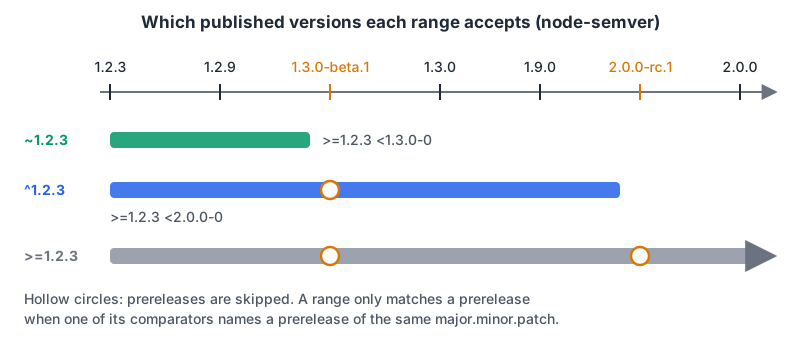
Notice the -0 on the upper bounds. <2.0.0-0 is the lowest possible 2.0.0 prerelease, so the range can't sneak into 2.0.0-rc.1 through the back door.
Caret is stricter below 1.0
The README defines caret as allowing changes that don't modify the left-most non-zero number. For 0.x packages that means caret behaves like tilde, and for 0.0.x it pins a single version:
$ semver -r '^0.2.3' 0.2.3 0.2.9 0.3.0 0.0.3 0.0.4
0.2.3
0.2.9

$ semver -r '^0.0.3' 0.2.3 0.2.9 0.3.0 0.0.3 0.0.4
0.0.3
This is npm being sensible: since the spec says a 0.x package can break anything at any time, npm treats each 0.x minor as if it were a major. If you maintain a 0.x package and want users to get fixes automatically, ship them as patch releases.
Prereleases are opt-in
The rule that surprises people: a range only matches a prerelease if one of its comparators has a prerelease on the same major.minor.patch. That's why 1.3.0-beta.1 and 1.2.4-beta.1 were missing from the ^1.2.3 output even though they're numerically inside the range. Two more runs show both sides:
$ semver -r '^1.2.4-beta.0' 1.2.3 1.2.9 1.3.0 1.9.0 2.0.0 2.0.0-rc.1 1.3.0-beta.1 1.2.4-beta.1
1.2.4-beta.1
1.2.9
1.3.0
1.9.0

$ semver -r '^2.0.0' 2.0.0-rc.1
$ echo $?
1
The first range names a 1.2.4 prerelease, so 1.2.4-beta.1 qualifies but 1.3.0-beta.1 still doesn't. The second shows that ^2.0.0 won't accept the release candidate of 2.0.0, which is lower than 2.0.0. If you really want prereleases, node-semver's includePrerelease option (-p on the CLI) turns the rule off, but npm itself keeps it on, which is what you want: nobody gets a beta by accident.
The lockfile is what actually installs
Ranges describe what's allowed. package-lock.json "describes the exact tree that was generated", is meant to be committed, and is at lockfileVersion 3 for npm 9 and later.
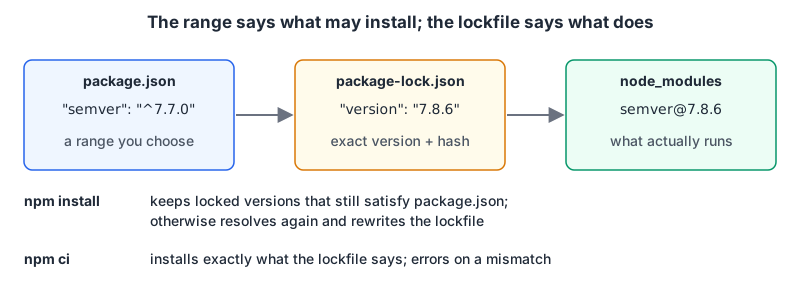
The two install commands treat it differently:
npm installwith no arguments uses the locked versions if they still satisfy the ranges inpackage.json. If you've edited a range so the lock no longer fits, it resolves again and rewrites the lockfile. The npm install docs sum it up as: when they conflict,package.jsonwins.npm cirequires a lockfile, deletesnode_modules, installs exactly what's locked, and exits with an error rather than updating anything if the lockfile andpackage.jsondisagree (npm ci docs). Use it in CI and in Dockerfiles.
So in the opening example, 7.8.6 and 7.8.5 both came from fresh resolutions at different times. Once one of them is committed in the lockfile and everyone installs with npm ci, the drift stops. Changes in the lockfile then arrive as reviewable diffs, ideally from a bot; our post on automating dependency updates covers grouping and auto-merging those PRs.
Two npm settings decide what gets written when you run npm install some-pkg. save-prefix defaults to ^, and save-exact (default false) writes a bare version instead. And if you're on npm 12, min-release-age can make npm ignore versions newer than a given number of days, which is a supply-chain defence more than a versioning one; our npm supply-chain post explains the trade-off.
Libraries don't ship their lockfile
If you publish a package, the lockfile isn't in the tarball. npm's package.json docs list lock files among the files that are always ignored when packing. Your users resolve your dependencies ranges fresh, inside their own lockfile. Two consequences:
- Your CI, running
npm ciagainst your lockfile, isn't testing what users install. A scheduled job that runsnpm installwithout a lockfile (ornpm updatefirst) catches a broken new release of one of your dependencies before your users report it. - Keep dependency ranges as wide as you've actually tested.
^is right for most things. Pinning an exact version in a library can force duplicate copies into users' trees when their other packages want a different patch.
Bumping your own version
npm version does the arithmetic and the Git bookkeeping. In a Git repo it refuses to run on a dirty working tree, then bumps the version in package.json, commits, and tags with the tag-version-prefix (v by default). The semver -i CLI shows the same increments without touching anything:
$ semver -i minor 1.4.2
1.5.0
$ semver -i premajor --preid rc 1.4.2
2.0.0-rc.0
$ semver -i prerelease 2.0.0-rc.0
2.0.0-rc.1
$ semver -i prerelease --preid rc 2.0.0
2.0.1-rc.0
That last one catches people out: prerelease on a released version bumps the patch first. To start release candidates for the next major, use premajor.
Deciding the bump is the hard part, and it's easier when commit messages say what kind of change each one is. With Conventional Commits a feat: means minor and a ! or BREAKING CHANGE: footer means major; our commit message generator writes those headers and footers, and the changelog generator groups a list of them into a Keep a Changelog section. For a quick "which of these two is newer, and is it a major, minor or patch jump" check, the semver comparator does that in the browser. For range questions involving prereleases or 0.x, trust npx semver -r over any web tool.
Rules of thumb
- Applications: keep
^ranges, commit the lockfile, install withnpm cieverywhere except your own laptop. - Libraries:
^ranges for dependencies, the widest range you test forpeerDependencies, and a scheduled lockfile-free CI run. - Treat 0.x dependencies as if every minor is breaking, because npm does.
- Publish prereleases with an explicit
-rc.Nor-beta.Nand rely on ranges skipping them. - Shipped a breaking change in a minor? Don't unpublish; release the fix as the next minor and tell users which version was bad.
Which package manager you use changes the lockfile format but not the range rules; our package manager guide covers the differences.
Written by AIDToolStack Editorial
Researched from official documentation, specifications and vendor pages, listed under Sources below. Last checked November 2026.
Sources
- semver.org/
- github.com/npm/node-semver
- www.npmjs.com/package/semver
- docs.npmjs.com/cli/v12/configuring-npm/package-lock-json
- docs.npmjs.com/cli/v12/commands/npm-install
- docs.npmjs.com/cli/v12/commands/npm-ci
- docs.npmjs.com/cli/v12/commands/npm-version
- docs.npmjs.com/cli/v12/using-npm/config
- docs.npmjs.com/cli/v12/configuring-npm/package-json
- docs.npmjs.com/policies/unpublish
Related Posts
Explore on AIDToolStack
Discover tools and servers featured in our directory.
AI Tools
MCP Servers
Sponsor Our Newsletter
Reach thousands of developers who are actively evaluating AI tools, MCP servers, and dev infrastructure. Our weekly newsletter goes to engaged technical decision-makers.
All sponsored content is clearly labeled per our editorial policy.