
MCP servers for browser automation: Playwright MCP vs Chrome DevTools MCP
You ask the agent to fix a layout bug. It edits the CSS and tells you it's fixed. It hasn't looked. A browser MCP server is how you let it look: open the page, click through the flow, read the console, and come back with evidence instead of confidence.
As of November 2026 there are two servers I'd consider for that job, and both come from the people who build the underlying browser tooling: Microsoft's Playwright MCP and the Chrome DevTools team's Chrome DevTools MCP. The Puppeteer server that many older tutorials still show has been archived. Everything below comes from each project's README and docs as fetched on 7 November 2026. Both projects release often, so check the README before you copy a flag.
The short version
| Playwright MCP | Chrome DevTools MCP | |
|---|---|---|
| Maintainer | Microsoft | Chrome DevTools team (Google) |
| npm package | @playwright/mcp (0.0.84) | chrome-devtools-mcp (1.12.0) |
| Browsers | chrome, firefox, webkit, msedge via --browser | Chrome and Chrome for Testing officially |
| What the model gets | Accessibility snapshot with element refs | Snapshots plus traces, network requests, console |
| Best at | Driving user flows, across engines | Debugging and performance work in Chrome |
| Lighter option | Playwright CLI with skills | --slim (3 tools) or the bundled CLI |
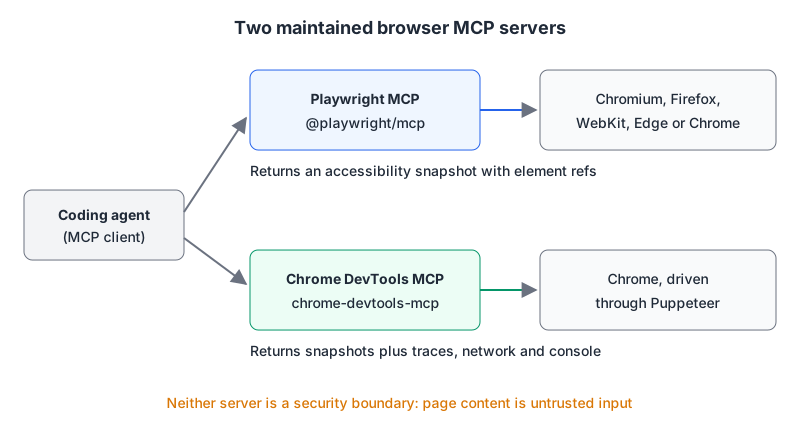
Both run locally over stdio by default, which is what you want for a coding agent: the browser opens on your machine, next to your dev server. If you haven't wired an MCP server into your editor before, our setup guide for Claude Code, Cursor and VS Code covers the config files.
Playwright MCP: drive the page through the accessibility tree
The standard config is one line of npx:
{
  "mcpServers": {
    "playwright": {
      "command": "npx",
      "args": ["@playwright/mcp@latest", "--isolated"]
    }
  }
}
The design choice that matters is how the model sees the page. Instead of screenshots, browser_snapshot returns the page's accessibility tree, and action tools such as browser_click, browser_type and browser_fill_form take an element reference from that snapshot. The README sells this as "LLM-friendly. No vision models needed." In practice it means the agent clicks the button named "Submit", not the pixel at (412, 380), which is also roughly how you'd write a good Playwright locator by hand. (Our Playwright selector builder is there for the hand-written kind.)
Extra tool groups are opt-in. --caps takes vision for coordinate-based clicking when something isn't in the accessibility tree, pdf, and devtools, and the README documents further opt-in groups for network mocking, cookies and storage, and test assertions. Each has its own section in the tool list.
Things worth knowing before you hand it to an agent:
- Profiles. By default it uses a persistent profile, so logins survive between sessions.
--isolatedkeeps the profile in memory instead, and--user-data-dirpoints at a specific one. The README warns that a persistent profile can only be used by one browser instance at a time, so two clients sharing a workspace will collide. - Your real browser.
--extensionconnects to a running Edge or Chrome through the Playwright extension, which gives the agent your logged-in sessions. Useful, and also the moment the agent can read everything you can. - One core tool is a shell in disguise.
browser_run_code_unsaferuns a Playwright snippet and is described in the README as "RCE-equivalent". It is not behind a--capsflag, so gate it in your client (see the checklist at the end). - Origin filters aren't walls.
--allowed-originsand--blocked-originsboth carry the note that they do not serve as a security boundary and do not affect redirects. The README's security section is one sentence: Playwright MCP is not a security boundary. - Secrets in URLs.
--redact-url-params access_token,codereplaces those query values with<redacted>in tool responses, which is handy when you test OAuth flows.
The README is unusually candid about token cost. It points coding agents at Playwright CLI with skills instead, because, in its words, "CLI invocations are more token-efficient": no big tool schemas, no full accessibility trees in context. It keeps MCP for long-running loops where a continuous browser session is worth the tokens. I'd take that advice at face value. If your agent is mostly writing code and occasionally checks a page, try the CLI first.
Chrome DevTools MCP: when you need DevTools, not just a browser
{
  "mcpServers": {
    "chrome-devtools": {
      "command": "npx",
      "args": ["-y", "chrome-devtools-mcp@latest", "--isolated", "--no-usage-statistics"]
    }
  }
}
This one can click and type too (it uses Puppeteer for automation and waits for actions to settle), but its reason to exist is the rest of DevTools. The tool reference lists 61 tools in 12 categories, some off by default: performance_start_trace and performance_analyze_insight for traces, lighthouse_audit, list_network_requests and get_network_request, list_console_messages with source-mapped stack traces, and a set of heap snapshot tools for memory leaks. When the question is "why is LCP four seconds" or "which request is returning the 500", this is the server that can answer it.
Defaults you should know about, all from the README and configuration guide:
- Usage statistics are on by default. Google collects tool success rates, latency and environment info. Opt out with
--no-usage-statistics; collection is also disabled when theCIenvironment variable is set. - CrUX lookups. Performance tools may send trace URLs to the Chrome UX Report API to fetch field data.
--no-performance-cruxturns that off, which you'll want for internal URLs. - Profile. Without flags it uses a profile under
$HOME/.cache/chrome-devtools-mcp/.--isolatedcreates a temporary one that is cleaned up when the browser closes. - Attaching to your Chrome.
--autoConnectattaches to a Chrome you started yourself (Chrome 144 or later, after enabling remote debugging atchrome://inspect/#remote-debugging). The advanced usage doc notes it then has access to all open windows of that profile. The older route is--browser-url=http://127.0.0.1:9222against a Chrome launched with a non-default--user-data-dir. - Lockdown flags.
--javascript-evaluation=falseremovesevaluate_scriptand related entry points, with the honest caveat that it is "not a JavaScript sandbox".--blocked-url-patternand--allowed-url-patternrestrict network access (the allowlist needs Chrome 149+).--redact-network-headersis off by default. Tools that read or write local files are limited to the OS temp directory unless the client declares MCP roots.
There's also --slim, which cuts the surface to three tools (navigate, evaluate, screenshot), and a chrome-devtools CLI in the same package for scripting without MCP. You can see which tools a given flag combination really exposes with the MCP Inspector.
What happened to the Puppeteer server
@modelcontextprotocol/server-puppeteer was one of the original reference servers. It now sits in the servers-archived repository, whose README states in capitals that no security guarantees are provided, and the npm package carries a deprecation notice: "Archived and unmaintained; no security guarantees." Its last version is 2025.5.12. Its own README already warned that it could reach local files and internal IP addresses.
If you liked it because it was Puppeteer, the natural replacement is Chrome DevTools MCP, which is built on Puppeteer and is maintained by the Chrome team. If you liked it because it was a simple browser driver, Playwright MCP does that job with more engines. Either way, remove the archived package from shared configs rather than leaving it to rot. We keep pages for both maintained servers: Playwright MCP and Chrome DevTools MCP.
Picking one
- Reproducing a user flow, filling forms, checking WebKit or Firefox: Playwright MCP with
--isolated. - Performance, network failures, console errors, memory leaks: Chrome DevTools MCP.
- A coding agent with a tight context budget that only glances at pages: Playwright CLI, or Chrome DevTools MCP with
--slim. - A flow behind a login: either server attached to your browser (
--extensionor--autoConnect), but only after you accept that the agent sees the whole profile. A dedicated test account in a separate profile is the better habit.
Running both is fine. They don't conflict as long as they use different profiles.
Before you let an agent drive
- Treat every page as untrusted input. Text on a page can carry instructions aimed at the model; our post on prompt injection defences for MCP covers why that matters more once the agent can also click.
- Use an isolated or throwaway profile by default, and log in with test accounts, not your own.
- Put the code-execution tools behind approval. In Claude Code, permission rules are checked deny first, then ask, then allow, and MCP tools are named
mcp__<server>__<tool>:
{
  "permissions": {
    "allow": ["mcp__playwright__browser_snapshot", "mcp__playwright__browser_navigate"],
    "ask": ["mcp__playwright__browser_run_code_unsafe", "mcp__chrome-devtools__evaluate_script"]
  }
}- Turn off Chrome DevTools MCP's usage statistics and CrUX lookups if your company's policy says internal URLs stay internal.
- Pin a version in team configs instead of
@latest, and read the changelog when you bump it. The Chrome DevTools README makes the same point about its bundled skills: outdated ones "can tell your agent to use tools or parameters that changed."
Written by AIDToolStack Editorial
Researched from official documentation, specifications and vendor pages, listed under Sources below. Last checked November 2026.
Sources
- github.com/microsoft/playwright-mcp
- github.com/ChromeDevTools/chrome-devtools-mcp
- github.com/microsoft/playwright-mcp/releases
- github.com/ChromeDevTools/chrome-devtools-mcp/releases
- github.com/microsoft/playwright-mcp#tools
- github.com/microsoft/playwright-cli
- github.com/ChromeDevTools/chrome-devtools-mcp/blob/main/docs/tool-reference.md
- github.com/ChromeDevTools/chrome-devtools-mcp/blob/main/docs/configuration.md
- github.com/ChromeDevTools/chrome-devtools-mcp/blob/main/docs/advanced-usage.md
- github.com/modelcontextprotocol/servers-archived/tree/main/src/puppeteer
- code.claude.com/docs/en/permissions
- www.npmjs.com/package/@modelcontextprotocol/server-puppeteer
- github.com/ChromeDevTools/chrome-devtools-mcp/blob/main/docs/slim-tool-reference.md
Related Posts
Explore on AIDToolStack
Discover tools and servers featured in our directory.
AI Tools
MCP Servers
Sponsor Our Newsletter
Reach thousands of developers who are actively evaluating AI tools, MCP servers, and dev infrastructure. Our weekly newsletter goes to engaged technical decision-makers.
All sponsored content is clearly labeled per our editorial policy.