
A VPS Hardening Checklist: Firewalls, SSH, Docker's ufw Gap, Updates and Backups
A new VPS is reachable from the whole internet a minute after you create it, and scanners don't wait for you to finish reading the setup guide. The good news is that the first hour of hardening is short and mostly boring: filter traffic before it reaches the box, make SSH accept keys only, keep packages patched, and get backups off the machine.
This is the checklist in the order I'd do it, with the defaults that matter taken from the OpenSSH manuals, Ubuntu and Debian docs, Docker's firewall docs and Hetzner's firewall docs, all checked on 7 November 2026. It assumes Ubuntu or Debian. I haven't run these commands against a live server for this post, so treat the snippets as starting points and use the verification commands to check them on yours.
0. Before you change anything
Two rules that prevent most lockouts:
- Keep a second SSH session open while you edit sshd or firewall settings. Test the new config from a third terminal before you close either.
- Know your way back in. If your provider has a browser console, find it now, not after you've broken SSH.
1. Put a firewall in front of the server
Filter at the provider first. On Hetzner Cloud, Firewalls cost nothing ("We do not charge for our Cloud Firewalls"), and with no rules "all inbound traffic will automatically be blocked" while outbound is allowed. The FAQ adds the details that matter:
- They're stateful, so replies to connections your server opens come back without extra rules.
- Unmatched inbound traffic "will be dropped and will not reach your server."
- Private networks aren't covered yet, because Hetzner considers them secure. Servers on the same private network can still reach each other's ports.
- As soon as you add one outbound rule, outbound flips to implicit deny too. Add none unless you mean it.
A sensible start: TCP 22 from your own address range only, TCP 80 and 443 from anywhere. If you're working out a range like 203.0.113.0/28, our CIDR calculator shows what it covers. Other providers have equivalents; the principle is the same.
Then add ufw on the host as a second layer. From the ufw(8) man page and Ubuntu's firewall guide:
sudo ufw default deny incoming
sudo ufw default allow outgoing
sudo ufw limit 22/tcp        # denies an IP after 6+ connections in 30 seconds
sudo ufw allow 80/tcp
sudo ufw allow 443/tcp
sudo ufw --dry-run enable    # show the rules without applying them
sudo ufw enable
sudo ufw status verbose
ufw is disabled by default on Ubuntu. The man page warns that enabling it "may drop existing connections (eg ssh)", which is why the SSH rule goes in before enable.
2. If you run Docker, ufw isn't enough
This is the trap that catches the most people. Docker's packet filtering docs say "Docker and ufw use firewall rules in ways that make them incompatible with each other": traffic to published container ports is "diverted before it reaches the INPUT and OUTPUT chains that ufw uses."
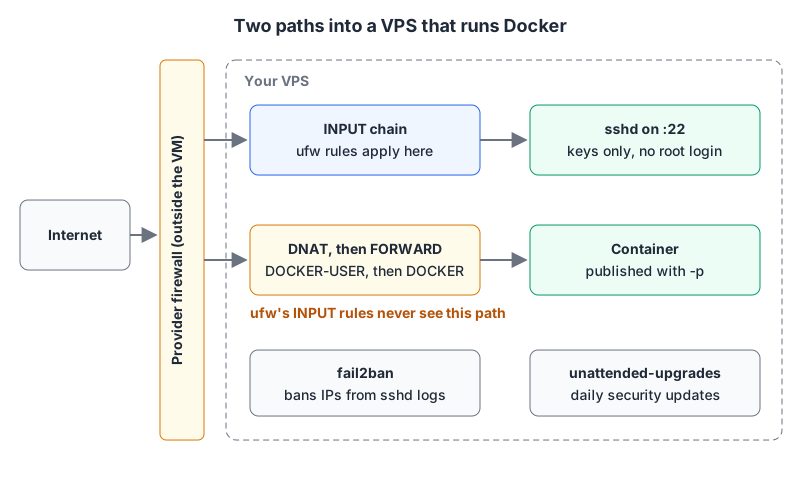
So ufw deny 5432 does nothing for a Postgres container started with -p 5432:5432. And by default, Docker publishes ports "to all host addresses (0.0.0.0 and [::])". The page puts it plainly: "Publishing container ports is insecure by default."
What works:
- Publish only the reverse proxy. Databases and app containers talk over the Docker network and need no host port.
- Bind debug ports to loopback:
-p 127.0.0.1:5432:5432. With that, "only the Docker host can access the published container port." The same page warns that before Docker 28.0.0, hosts on the same L2 segment could still reach ports published to localhost, so checkdocker versionon older installs. - Change the default. Setting
"ip": "127.0.0.1"in/etc/docker/daemon.jsonmakes loopback the default host binding for the default bridge; per-network, thecom.docker.network.bridge.host_binding_ipv4option does the same. - Filter in
DOCKER-USERif you need host-level rules for containers. Docker's iptables page calls it "a placeholder for user-defined rules that will be processed before rules in theDOCKER-FORWARDandDOCKERchains." - Rely on the provider firewall, which sits outside the VM and doesn't care about either.
We walked through the Compose side of this in Deploying Next.js to Hetzner. If you use Coolify, its own port list is in our Coolify post.
3. SSH: keys only, no root password
Create a normal user, put your public key in its ~/.ssh/authorized_keys, and log in as that user in a new terminal before going further. The SSH keys post covers generating an Ed25519 key with a passphrase.
Then check what the server's defaults actually are. From sshd_config(5):
| Setting | Default | Set it to |
|---|---|---|
PasswordAuthentication | yes | no |
KbdInteractiveAuthentication | yes | no |
PermitRootLogin | prohibit-password | no once your sudo user works |
MaxAuthTries | 6 | 3 is plenty with keys |
LoginGraceTime | 120 seconds | 30s |
X11Forwarding | no | leave it |
AllowUsers | everyone | your login user(s) |
Password logins are on by default upstream. Turning them off is the most important change on this page.
Ubuntu's OpenSSH server docs point out that the stock sshd_config starts with Include /etc/ssh/sshd_config.d/*.conf, and that snippets win because "OpenSSH uses the first value set for most directives." sshd_config(5) says wildcards in Include are "expanded and processed in lexical order," so a file named to sort first takes precedence over anything another tool dropped there. I'd use /etc/ssh/sshd_config.d/00-hardening.conf:
PasswordAuthentication no
KbdInteractiveAuthentication no
PermitRootLogin no
AuthenticationMethods publickey
MaxAuthTries 3
LoginGraceTime 30s
AllowUsers deploy
Then test before you restart. sshd(8) gives you two modes: -t checks "the validity of the configuration file and sanity of the keys," and -T prints the effective configuration:
sudo sshd -t
sudo sshd -T | grep -E 'passwordauth|kbdinteractive|permitrootlogin|authenticationmethods|allowusers'
sudo systemctl restart ssh
Open a new session to confirm you can still log in, then close the old ones.
Changing the SSH port on Ubuntu. Ubuntu starts sshd through systemd socket activation by default, and restarting ssh.service alone leaves it on port 22. That was reported in Launchpad bug 2069041, and the fix added a note to the default config: after changing Port, AddressFamily or ListenAddress, run systemctl daemon-reload and systemctl restart ssh.socket. Allow the new port in both firewalls first. A different port cuts log noise from scanners; it isn't a substitute for any step above.
4. Slow down guessing: PerSourcePenalties or fail2ban
OpenSSH 9.8 (July 2024) made sshd "penalise client addresses that, for various reasons, do not successfully complete authentication", and the PerSourcePenalties option controlling it "is on by default." Which servers have it depends on the distro's OpenSSH version. As of November 2026 the package indexes list Ubuntu 24.04 at 9.6p1 and 26.04 at 10.2p1, and Debian 12 at 9.2p1 and Debian 13 at 10.0p1. So unless the distro backported it, an Ubuntu 24.04 or Debian 12 server doesn't have it, while 26.04 and Debian 13 do. Check the installed package with dpkg -l openssh-server.
fail2ban does the same job for older servers and for other services, by scanning logs and banning addresses with too many failures. Its README is honest about the limit: it "cannot eliminate the risk presented by weak authentication." With password login off, it mainly cuts the noise.
If you install it, don't edit jail.conf. The file's header says "YOU SHOULD NOT MODIFY THIS FILE" and to put changes in jail.local or jail.d/. The defaults in jail.conf are bantime = 10m, findtime = 10m and maxretry = 5. The part that trips people up is where sshd logs. If it logs only to the systemd journal, the jail needs backend = systemd, which jail.conf describes as using "systemd python library to access the systemd journal." The upstream sshd filter matches journal entries from the sshd.service unit, but Debian and Ubuntu call the unit ssh.service. Debian's current packaging handles this: its jail.d default enables the sshd jail, reads the journal for ssh.service, and bans via nftables. So on Debian, keep jail.local small:
[DEFAULT]
ignoreip = 127.0.0.1/8 ::1 203.0.113.10
bantime.increment = true
bantime.increment makes repeat offenders' bans grow. Put your own address in ignoreip so a fat-fingered key doesn't ban you. Then check the jail is actually counting: sudo fail2ban-client status sshd should show failures rising after a failed login from another address. A jail that never counts anything is the usual sign of the wrong backend or unit name.
5. Patch automatically
On Ubuntu, Canonical's automatic updates page says unattended-upgrades is installed by default and security updates install automatically, once a day. Confirm it rather than assume, especially on provider images:
cat /etc/apt/apt.conf.d/20auto-upgrades
# APT::Periodic::Update-Package-Lists "1";
# APT::Periodic::Unattended-Upgrade "1";
sudo unattended-upgrade -v --dry-run
The default allowed origins are the release and -security pockets (plus ESM security ones); -updates is commented out. One setting deserves a decision: Unattended-Upgrade::Automatic-Reboot defaults to false, so kernel and libc fixes wait for a reboot you schedule. Either turn it on with an Automatic-Reboot-Time in a quiet window, or put a monthly reboot in your calendar. Logs are in /var/log/unattended-upgrades.
On Debian, the wiki is less definite: the package may be missing or disabled. Run sudo dpkg-reconfigure unattended-upgrades and answer yes; sudo unattended-upgrade -d runs it once with debug output.
Docker images don't get these updates. Rebuild and redeploy containers on a schedule too.
6. Backups that live somewhere else
A provider snapshot is a start, but it sits with the same provider as the server, and you can't restore one table from a disk image. Dump databases on a schedule and copy them off the box; our database backup post covers pg_dump, point-in-time recovery and restore testing. Then actually restore one.
7. Check from the outside
Hardening you haven't verified is a guess. From the server, sudo ss -tlnp lists every listening TCP socket and the process behind it; anything bound to 0.0.0.0 or [::] that you didn't expect needs explaining. From another machine, try to connect to the ports you think are closed, for example nc -vz your-server 5432. Our port reference helps put names to unfamiliar numbers.
The whole list, compressed:
- Provider firewall: 22 from your range, 80/443 open, nothing else.
- ufw enabled, with SSH allowed first.
- No container ports published except the proxy; debug ports on 127.0.0.1.
- Non-root sudo user with a key;
PasswordAuthentication no,PermitRootLogin no. sshd -tandsshd -Tchecked; new session tested before closing the old one.- PerSourcePenalties (OpenSSH 9.8+) or a fail2ban jail you've seen count failures.
- unattended-upgrades confirmed with a dry run, and a reboot plan.
- Off-site database backups, and one restore tested.
ss -tlnpmatches what you expect.
If you'd rather not expose SSH at all, a private network such as Tailscale lets you close port 22 at the provider firewall entirely.
Written by AIDToolStack Editorial
Researched from official documentation, specifications and vendor pages, listed under Sources below. Last checked November 2026.
Sources
- docs.hetzner.com/cloud/firewalls/overview/
- docs.hetzner.com/cloud/firewalls/faq/
- manpages.ubuntu.com/manpages/noble/en/man8/ufw.8.html
- ubuntu.com/server/docs/how-to/security/firewalls/
- docs.docker.com/engine/network/packet-filtering-firewalls/
- docs.docker.com/engine/network/port-publishing/
- docs.docker.com/engine/network/firewall-iptables/
- man.openbsd.org/sshd_config.5
- man.openbsd.org/sshd.8
- ubuntu.com/server/docs/how-to/security/openssh-server/
- bugs.launchpad.net/ubuntu/+source/openssh/+bug/2069041
- www.openssh.org/txt/release-9.8
- packages.ubuntu.com/search?keywords=openssh-server&searchon=names&exact=1
- packages.debian.org/search?keywords=openssh-server&searchon=names&exact=1
- github.com/fail2ban/fail2ban
- raw.githubusercontent.com/fail2ban/fail2ban/master/config/jail.conf
- raw.githubusercontent.com/fail2ban/fail2ban/master/config/filter.d/sshd.conf
- salsa.debian.org/python-team/packages/fail2ban/-/raw/master/debian/debian-files/jail.d_defaults-debian.conf
- ubuntu.com/server/docs/how-to/software/automatic-updates/
- wiki.debian.org/UnattendedUpgrades
Related Posts
Explore on AIDToolStack
Discover tools and servers featured in our directory.
AI Tools
MCP Servers
Sponsor Our Newsletter
Reach thousands of developers who are actively evaluating AI tools, MCP servers, and dev infrastructure. Our weekly newsletter goes to engaged technical decision-makers.
All sponsored content is clearly labeled per our editorial policy.