
Image Formats for the Web: AVIF, WebP, JPEG, PNG and JPEG XL Compared
Someone exports a product photo from a design tool as a PNG, because PNG is "the high-quality one", and the homepage hero ends up several times heavier than it needs to be. Someone else runs every screenshot in the docs through lossy JPEG, and the code in them grows coloured fringes. Both are format mistakes, and both are easy to avoid once you know what each format is for.
This is a practical guide to the five raster formats you'll meet on the web in November 2026: what browsers support, what each format is good at, how to serve more than one, and which encoder settings actually matter. SVG gets a mention for icons, but it has its own post.
Browser support as of November 2026
The figures below come from MDN's image format guide (last modified 5 November 2026) and Can I Use for AVIF, WebP and JPEG XL. "Global" is Can I Use's estimate of users on a supporting browser.
| Format | Chrome | Edge | Firefox | Safari (macOS) | Safari (iOS) | Global |
|---|---|---|---|---|---|---|
| JPEG, PNG | all | all | all | all | all | all |
| WebP | 32 | 18 | 65 | 16.0 (partial 14 to 15.6) | 14 | 97.32% |
| AVIF | 85 | 121 | 93 | 16.4 (partial 16.1 to 16.3) | 16.0 | 96.71% |
| JPEG XL | 155 | not yet | 158 | partial from 17 | partial from 17 | 69.25% |
The JPEG XL row is the one that changed this year. Can I Use lists Chrome 155 and Firefox 158 as the first versions with it on by default (earlier versions had it behind a flag or setting), and Safari as partial since 17. MDN notes that "Safari does not support progressive download of JPEG XL files". Edge has no supported version listed yet. With roughly 30% of users unable to decode it, JPEG XL is a <picture> candidate with a fallback, not something you can ship bare.
AVIF and WebP are now safe as the main format for most audiences, though MDN still recommends a fallback in a <picture> element, and so would I if you serve old iPhones or embedded browsers.
What each format is good at
From the same MDN guide:
| JPEG | PNG | WebP | AVIF | JPEG XL | |
|---|---|---|---|---|---|
| Lossy | yes | no | yes | yes | yes |
| Lossless | no | yes | yes | yes | yes |
| Alpha channel | no | yes | yes | yes | yes |
| Animation | no | via APNG | yes | yes | yes |
| Bit depth, HDR | 8-bit | 1 to 16-bit per channel | 8-bit | HDR and wide gamut | HDR and wide gamut |
| Max dimensions | 65,535 px | 2,147,483,647 px | 16,383 px | 2,147,483,647 px | 1,073,741,823 px |
A few rows deserve a sentence each.
JPEG has no alpha. If you convert a transparent PNG to JPEG, something has to fill the transparent pixels. Our image compressor fills them with white when you pick JPEG output, which is the sensible default, but it means a logo on a dark site will get a white box.
AVIF doesn't render progressively. MDN: "files must be fully downloaded before they can be displayed." For a large hero image on a slow connection, that means a blank box until the last byte arrives. That's a real trade-off for your Largest Contentful Paint, and it's one reason JPEG XL gets attention: MDN says most browsers can render it progressively.
WebP tops out at 16,383 pixels a side. Rarely a problem for photos, occasionally a problem for very long screenshots or sprite sheets.
Lossy compression ruins sharp edges. MDN's advice is blunt: for "screenshots, diagrams, logos, and line art, prefer lossless encoding, as blurring and colored fringes around text and sharp edges are very visible." Lossless WebP or PNG for those; lossy for photographs.
Picking a format
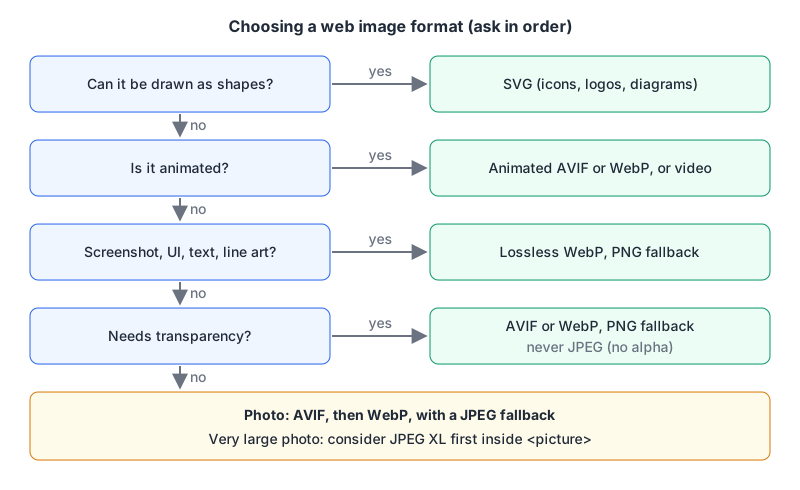
The short version I'd use on most projects:
- Icons, logos, diagrams drawn as shapes: SVG. MDN says to "prioritize the SVG version whenever possible" for icons.
- Photographs: AVIF first, WebP second, JPEG as the fallback.
- Screenshots, UI captures, text-heavy images: lossless WebP, with PNG as the fallback.
- Anything with transparency: WebP or AVIF, with PNG as the fallback. Never JPEG.
- Animations: animated WebP or AVIF, or a muted
<video>. MDN warns that converting full-colour images to GIF can produce "unsatisfactory dithering". - Very large, high-resolution photos where progressive display matters: consider JPEG XL inside
<picture>, with AVIF or JPEG behind it.
Serving more than one format
There are two ways to let each browser get the best format it can decode.
<picture> with type. The browser walks the <source> elements in order and uses the first one whose type it supports, falling back to the <img>:
<picture>
  <source type="image/avif" srcset="/img/product-1200.avif">
  <source type="image/webp" srcset="/img/product-1200.webp">
  <img src="/img/product-1200.jpg" alt="Walnut desk shelf, front view"
       width="1200" height="800">
</picture>
Put the width, height and alt on the <img>; it's the element that actually renders. Each <source> can also carry its own srcset and sizes when you have several widths per format; the next/image guide shows how sizes shapes the generated srcset.
Content negotiation. An image CDN or optimizer reads the request's Accept header and returns the best match from one URL. Next.js's <Image> does this: per the Next.js image docs, formats defaults to ['image/webp'], AVIF is opt-in with formats: ['image/avif', 'image/webp'], the first match in the array wins, and each format is cached separately, which the docs warn increases storage. If you'd rather skip the optimizer, the image compressor is a quick way to produce static WebP files by hand.
Encoders and the settings that matter
Quality numbers are not portable between encoders. sharp's defaults alone show it: quality 80 for JPEG and WebP, 50 for AVIF. Pick a quality per format by looking at your own images, not by copying a number from another tool.
sharp (Node.js). The sharp output docs list the defaults: jpeg quality 80 with mozjpeg: false; webp quality 80, effort 4; avif quality 50, effort 4, chroma subsampling 4:4:4; png compression level 6. JPEG XL output needs libvips built with libjxl, which the prebuilt binaries don't include, and the docs call it experimental. A build script that writes all three common formats:
import sharp from "sharp";

const input = sharp("hero.png");
await Promise.all([
  input.clone().avif({ quality: 50, effort: 6 }).toFile("hero.avif"),
  input.clone().webp({ quality: 78 }).toFile("hero.webp"),
  input.clone().jpeg({ quality: 80, mozjpeg: true }).toFile("hero.jpg"),
]);
effort buys a smaller file with CPU time, the same trade the cwebp docs describe for -m below. Fine in a build step, painful on every request.
cwebp. From the cwebp docs: -q runs 0 to 100 and defaults to 75; -m (method) runs 0 to 6, default 4, higher is slower and smaller; -lossless and -near_lossless handle screenshots; -sharp_yuv gives a sharper RGB-to-YUV conversion at some speed cost, worth trying on images with fine coloured detail. -metadata defaults to none, so EXIF (including GPS location from phone photos) is dropped unless you ask for it.
cwebp -q 78 -m 6 -sharp_yuv photo.jpg -o photo.webp
cwebp -lossless screenshot.png -o screenshot.webp
avifenc (libavif). Per the avifenc manual: -q is colour quality 0 to 100, where 100 is lossless; --qalpha does the same for the alpha channel; -s is speed 0 (slowest) to 10 (fastest), default 6; -d sets 8, 10 or 12-bit output.
avifenc -q 60 -s 4 photo.png photo.avifjpegli. If you still need JPEG, Google's jpegli is a JPEG encoder and decoder that is "API and ABI compatible with libjpeg62", so it can replace the system libjpeg, and it ships a cjpegli command-line tool. The output is ordinary JPEG that every browser decodes. MozJPEG is the other well-known improved JPEG encoder; sharp exposes it through the mozjpeg: true option.
Compression claims, and where they come from
You'll see percentages everywhere. The ones worth quoting have a named source. Google's WebP page says "WebP lossless images are 26% smaller in size compared to PNGs" and "WebP lossy images are 25-34% smaller than comparable JPEG images at equivalent SSIM quality index", citing its own studies. That's the format's author measuring on its own test set. Your photos, your quality target and your encoder settings will give different numbers, so measure a representative sample before committing a whole media library to a conversion.
Converting in the browser with our tools
Our image compressor and PNG to WebP converter run in your browser using the Canvas API, so files aren't uploaded. The compressor outputs JPEG, WebP or PNG with a quality slider and optional maximum dimensions; the batch image converter does the same for many files at once. None of them encode AVIF; use sharp or avifenc for that.
One caveat that applies to every canvas-based converter, ours included: per MDN's toBlob reference, browsers are only required to support PNG output, and if the requested type isn't supported "the data will be exported as image/png". If a WebP file from a browser tool is suspiciously large, check what it actually is before you ship it.
Gotchas before you convert a whole library
- Keep the originals. Re-encoding a lossy file adds a second round of artefacts.
- Strip metadata on purpose, not by accident. Dropping EXIF saves bytes and removes location data, but check that colours still look right on a wide-gamut screen afterwards.
- Don't lossy-encode screenshots of code or UI. Use lossless WebP or PNG.
- Check transparency after conversion. A JPEG fallback for a transparent image needs a background colour that matches where it's displayed.
- Watch the 16,383 px WebP limit on long screenshots.
- Set
widthandheighton every<img>, whatever the format, so the layout doesn't jump while it loads.
Written by AIDToolStack Editorial
Researched from official documentation, specifications and vendor pages, listed under Sources below. Last checked November 2026.
Sources
- developer.mozilla.org/en-US/docs/Web/Media/Guides/Formats/Image_types
- caniuse.com/avif
- caniuse.com/webp
- caniuse.com/jpegxl
- nextjs.org/docs/app/api-reference/components/image
- sharp.pixelplumbing.com/api-output/
- developers.google.com/speed/webp/docs/cwebp
- github.com/AOMediaCodec/libavif/blob/main/doc/avifenc.1.md
- github.com/google/jpegli
- developers.google.com/speed/webp
- developer.mozilla.org/en-US/docs/Web/API/HTMLCanvasElement/toBlob
Related Posts
Explore on AIDToolStack
Discover tools and servers featured in our directory.
AI Tools
MCP Servers
Sponsor Our Newsletter
Reach thousands of developers who are actively evaluating AI tools, MCP servers, and dev infrastructure. Our weekly newsletter goes to engaged technical decision-makers.
All sponsored content is clearly labeled per our editorial policy.