
Git Rebase vs Merge: What Each Does to Your History
Your pull request says the branch is out of date with main. You can fix that with git merge main or with git rebase main, and both leave you with a branch that contains everyone else's work. What they leave behind in the history is very different, and that difference is what teams end up arguing about.
So rather than argue in the abstract, here's the same situation run both ways, followed by the settings that make each one safer and a rule you can put in your contributing guide.
Same starting point, two histories
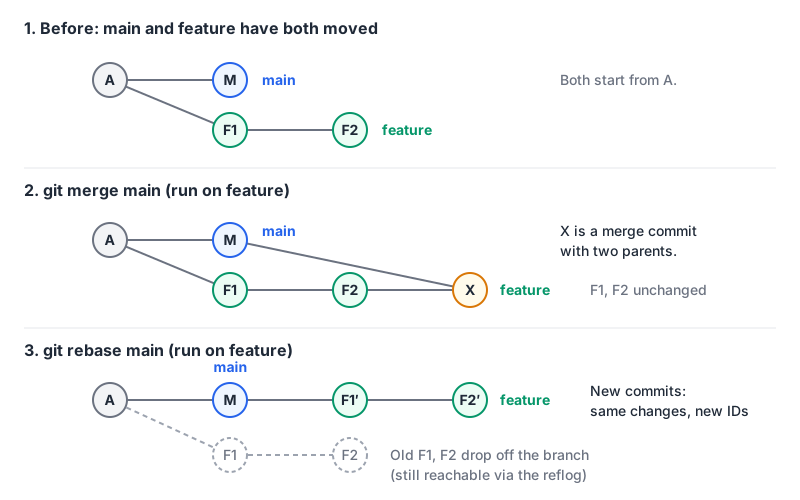
Take a throwaway repo: one commit A on main, then a feature branch with two commits (Add parser, Add parser tests), while main gained Fix typo in README. Then bring main into the feature branch both ways. This is the output of git log --graph --format='%s' from Git 2.50 on macOS (the current release as of November 2026 is Git 2.56.0, from 28 September 2026).
After git merge main (run on a copy of the branch named merge-demo, so the rebase below starts from the same place):
*   Merge branch 'main' into merge-demo
|\
| * Fix typo in README
* | Add parser tests
* | Add parser
|/
* Initial commit
After git rebase main on the feature branch:
Rebasing (1/2)Rebasing (2/2)Successfully rebased and updated refs/heads/feature.
* Add parser tests
* Add parser
* Fix typo in README
* Initial commit
The rebased version reads like the feature was started today. The catch shows up in the commit IDs. Before the rebase, Add parser was ad0703d and Add parser tests was d260d14. Afterwards:
$ git log --format='%h %s' feature -3
4bbfeec Add parser tests
4387fe5 Add parser
776ef03 Fix typo in README
Same changes, same messages, new commits. The old ones are still in the reflog (git reflog feature lists d260d14 and ad0703d), which is how you undo a rebase that went wrong.
What merge does
git merge records that two lines of history came together. If the branch you're merging is a descendant of yours, Git doesn't bother with a merge commit at all. The git-merge docs say --ff is the default: it just moves the branch pointer forward when it can, and creates a merge commit only when the histories have diverged. --no-ff forces a merge commit every time, and --ff-only refuses to merge unless a fast-forward is possible. The default strategy for merging a single branch is ort.
Nothing is rewritten. Every commit keeps its ID, so anyone who already pulled your branch can pull again without trouble. The price is the extra node in the graph: a branch that syncs with main every day collects a merge commit every day, and git log on main fills up with "Merge branch 'main' into feature" lines that tell nobody anything.
One flag that confuses people: git merge --squash isn't a merge in Git's sense. Per the docs it stages the combined changes but doesn't commit, doesn't move HEAD and doesn't record MERGE_HEAD, so the commit you make afterwards has one parent and no link back to the branch.
What rebase does
git rebase main takes the commits that are on your branch but not on main, sets them aside, moves the branch to the tip of main, and replays them one at a time. Each replay is a new commit with a new parent, which is why the IDs changed above.
Two details from the git-rebase docs matter in practice:
- Merge commits are dropped by default. A plain rebase linearises your branch. If you merged
maininto it earlier, those merges vanish from the todo list.--rebase-mergestries to keep the branch structure by recreating merges, but conflict resolutions inside them have to be redone by hand. - Rewriting shared history hurts other people. The docs are blunt that rebasing "a branch that others have based work on is a bad idea", because everyone downstream has to repair their own history.
Because the branch now points at different commits, a normal push is rejected and you need to force it. Use --force-with-lease, not --force. The git-push docs explain that it only overwrites the remote branch if it still points where your remote-tracking ref says it does, so a teammate's commit pushed in the meantime isn't silently thrown away. They also warn that a background git fetch (some editors run one) updates that remote-tracking ref behind your back and defeats the check. Adding --force-if-includes closes the gap by refusing the push unless the remote tip is in your local branch's reflog:
git push --force-with-lease --force-if-includesOur git command generator is handy for the less common rebase forms (-i, --onto, --abort and --continue), and its push form uses --force-with-lease; add --force-if-includes from the line above by hand.
Rewriting also can't take anything back. If a commit you already pushed contained a credential, a rebase that drops it still leaves copies in every clone and fork; our secret scanning guide explains why you rotate the key first and clean history last.
Where it bites: git pull
Most accidental merge commits come from git pull, which is a fetch followed by a merge or a rebase. When your local branch and the remote have both moved, here's what Git 2.50 printed with no pull settings configured:
hint: You have divergent branches and need to specify how to reconcile them.
hint: You can do so by running one of the following commands sometime before
hint: your next pull:
hint:
hint:   git config pull.rebase false  # merge
hint:   git config pull.rebase true   # rebase
hint:   git config pull.ff only       # fast-forward only
...
fatal: Need to specify how to reconcile divergent branches.
The current git-pull docs describe --ff-only as the default when no reconcile method is configured, so the effect is the same: a diverged pull stops and makes you choose. pull.rebase accepts true, false, merges (rebase while keeping local merge commits) and interactive.
My preference for day-to-day work is a rebasing pull, because a pull of someone else's commits onto your unpushed work is exactly the case where nobody else has seen your commits yet:
git config --global pull.rebase trueIf you'd rather decide every time, git config --global pull.ff only makes any diverged pull fail and you pick --rebase or --no-rebase on the spot.
Three settings that make rebasing less painful
--update-refs for stacked branches. If part-2 is built on part-1 and you rebase part-2 onto a newer main, part-1 normally stays behind on the old commits. With --update-refs (or rebase.updateRefs=true), Git moves any branch that points at a rewritten commit. From the demo repo:
$ git rebase --update-refs main
Rebasing (1/3)Rebasing (2/3)Rebasing (3/3)Successfully rebased and updated refs/heads/part-2.
Updated the following refs with --update-refs:
	refs/heads/part-1
The docs note that branches checked out in another worktree are skipped.
Autosquash for review fixes. Commit a fix with git commit --fixup=<sha> and a later git rebase -i --autosquash main moves it next to its target and marks it fixup. Setting rebase.autoSquash=true makes that the default for interactive rebases. Pair this with commit messages worth keeping, since a rebased branch is usually the history that lands.
rerere for repeat conflicts. "Reuse recorded resolution" remembers how you resolved a conflict and applies the same fix next time the same conflict appears. The git-rerere docs say it's used by rebase as well as merge, and that it's off until you set rerere.enabled:
git config --global rerere.enabled trueIt earns its keep on long-lived branches that you rebase repeatedly.
What GitHub's merge buttons do
Most teams don't merge PRs from the command line, so the repository setting matters more than anyone's local habit. From GitHub's pull request merge docs:
| Button | What lands on main | Commit IDs |
|---|---|---|
| Create a merge commit | All PR commits plus a merge commit (--no-ff) | Unchanged |
| Squash and merge | One new commit, fast-forwarded | New |
| Rebase and merge | Each PR commit replayed on top | Always new, committer info updated |
Note the last row: GitHub's rebase-and-merge always creates new SHAs and updates committer information, unlike a local git rebase onto an ancestor, and it drops commits that were empty to begin with. If your branch protection has "Require linear history" turned on, only squash and rebase merges are allowed.
Squash-and-merge sidesteps most of this debate: the feature branch can be as messy as you like, because main only ever sees one commit per PR. You lose per-commit history on main, which matters more for some teams than others. Which branching model you use changes the trade-off; our branching strategies comparison covers that side.
Is Git 3.0 changing any of this?
Not the merge and rebase defaults. Git's BreakingChanges document lists what 3.0 will change: SHA-256 and reftable as defaults for new repositories, main as the default initial branch name, Rust required to build, and safe.bareRepository defaulting to explicit. It says there is no planned release date yet. Pull, merge and rebase behaviour aren't on the list.
A rule your team can paste into CONTRIBUTING.md
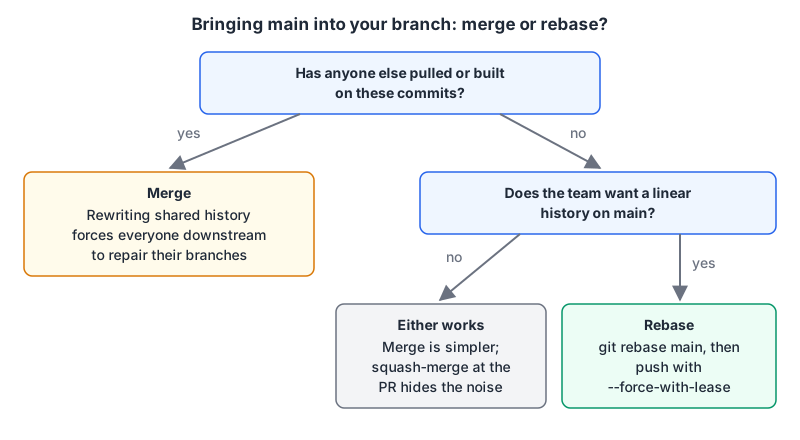
- Never rebase
mainor any branch other people commit to. - Rebase your own feature branch as often as you like until someone else has checked it out or started reviewing commit by commit. After that, merge
mainin or ask first. - When you do push a rewritten branch, use
git push --force-with-lease --force-if-includes. Never bare--force. - Set
pull.rebase=true(orpull.ff=only) sogit pullnever creates surprise merge commits. - Pick one PR merge method in the repository settings and disable the others, so history on
mainhas one shape. - If you keep long-lived branches, turn on
rerere.enabledandrebase.updateRefs.
If you're unsure in the moment, merge. A merge commit you didn't need is ugly; a rebase of commits someone else built on costs them an afternoon.
Written by AIDToolStack Editorial
Researched from official documentation, specifications and vendor pages, listed under Sources below. Last checked November 2026.
Sources
- git-scm.com/
- git-scm.com/docs/git-merge
- git-scm.com/docs/git-rebase
- git-scm.com/docs/git-pull
- git-scm.com/docs/git-push
- git-scm.com/docs/git-rerere
- git-scm.com/docs/BreakingChanges
- github.com/git/git/blob/master/Documentation/RelNotes/2.55.0.adoc
- docs.github.com/en/pull-requests/collaborating-with-pull-requests/incorporating-changes-from-a-pull-request/about-pull-request-merges
- docs.github.com/en/repositories/configuring-branches-and-merges-in-your-repository/managing-protected-branches/about-protected-branches
Related Posts
Explore on AIDToolStack
Discover tools and servers featured in our directory.
AI Tools
MCP Servers
Sponsor Our Newsletter
Reach thousands of developers who are actively evaluating AI tools, MCP servers, and dev infrastructure. Our weekly newsletter goes to engaged technical decision-makers.
All sponsored content is clearly labeled per our editorial policy.