
Secret Scanning for Git Repositories: Push Protection, Gitleaks, TruffleHog and Key Rotation
A key in a commit is a different problem from a key in a .env file. Once it's in Git history it's on every clone, every fork and every CI cache, and deleting the line in the next commit does nothing. GitHub's own remediation guide says to "consider any leaked secret to be immediately compromised."
So secret scanning works in layers. Catch it before the commit, then before the push, then in CI, then after the fact, and have a runbook for when all four miss. This post sets up each layer with real config and ends with the rotation steps for the two credentials people leak most. How to keep secrets out of code in the first place is covered in our environment variables and secrets post; this one is about catching what slips through.
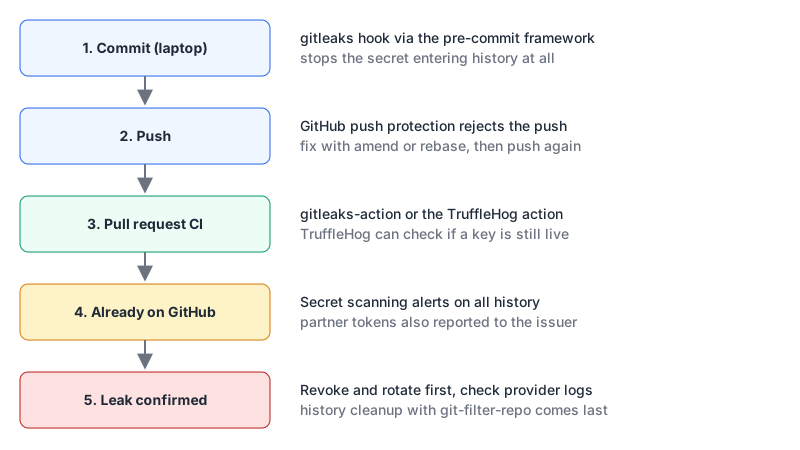
What GitHub gives you, and what it charges for
As of November 2026 the split is simple: public repositories get the core features free, private ones need a paid add-on.
Per the secret scanning overview, GitHub "scans your entire Git history on all branches," plus issues, pull request titles, descriptions and comments, Discussions, wikis and secret gists. On public repos that runs automatically at no cost. On organisation-owned private repos it needs GitHub Secret Protection on GitHub Team or Enterprise Cloud. That became a standalone product on 1 April 2025 at "$19 per month per active committer". The billing docs define an active committer as someone whose commit was pushed in the last 90 days.
There's also a partner program: when GitHub finds a token belonging to a participating provider, it notifies that provider, which can revoke it. Those partner reports "aren't displayed in your repository alerts," so don't assume you'll see them.
Push protection is the more useful half because it acts before the secret lands. From the push protection docs:
- Push protection for users is on by default and tied to your personal account. It stops you pushing supported secrets to public repositories on GitHub.com.
- Repository-level push protection requires Secret Protection, is off by default, and has to be enabled by an admin, org owner or security manager. This is the one that protects private repos.
- Anyone with write access can bypass by choosing a reason: "It's used in tests", "It's a false positive" or "I'll fix it later". The last one creates an open alert. Bypasses are logged and owners are emailed. If you want a real gate, set up delegated bypass so only named people can approve.
Coverage is broader than provider tokens. The supported patterns page lists generic patterns such as private keys and Postgres, MySQL and MongoDB connection strings, plus AI-detected passwords. Validity checks (asking the provider whether a key is live) aren't supported for generic or AI-detected patterns, only for some provider patterns.
When a push is blocked
The fix depends on where the secret is. If it's only in your latest commit, the command-line guide says to remove it and amend:
# remove the secret from the file, then
git commit --amend --all
git push
If it's further back, rebase from the commit before the oldest one that contains it:
git rebase -i <COMMIT-ID>~1
# change "pick" to "edit" on the commit that added the secret, save, then:
#   remove the secret from the file
git add .
git commit --amend
git rebase --continue
git push
This is the cheap moment. The secret never reached the remote, so nothing needs rotating, though I'd still rotate anything that sat in a shared branch or a CI log.
Gitleaks on the laptop
Push protection is server-side and limited to patterns GitHub supports. A local hook catches things before they're even in your history, and it works regardless of where the repo is hosted.
Gitleaks (MIT, v8.30.1 as of November 2026) is the usual choice. One status note: the README now says "Gitleaks is feature complete" and that releases will be security patches only, with the maintainer's new work going into a successor project called Betterleaks. It still works fine; just don't wait for new features.
With the pre-commit framework, add this to .pre-commit-config.yaml:
repos:
  - repo: https://github.com/gitleaks/gitleaks
    rev: v8.30.1
    hooks:
      - id: gitleaks
Then pre-commit install. Everyone on the team has to run that once; a hook nobody installed protects nobody, which is why the CI layer still matters. To skip it for one commit there's SKIP=gitleaks git commit ..., and that escape hatch is exactly why the hook is a convenience, not a control.
The commands you'll use directly:
# scan full history of the repo in the current directory
gitleaks git -v

# scan a directory or file without Git (build output, a config dump)
gitleaks dir -v ./dist

# record today's findings, then only report new ones
gitleaks git --report-path gitleaks-report.json
gitleaks git --baseline-path gitleaks-report.json --report-path findings.json
The baseline is the trick for adopting it on an old repo: you don't have to fix five years of history before the check can go green. Add --redact so secrets don't get printed into CI logs. For known test fixtures, append #gitleaks:allow to the line, or add the finding's fingerprint to .gitleaksignore. Custom rules go in .gitleaks.toml; start from the defaults with:
[extend]
useDefault = true
CI: gitleaks-action or TruffleHog
The CI scan is the layer you can actually enforce with branch protection. Two good options.
gitleaks-action. The action README is free for personal accounts, but repos owned by an organisation "will need to obtain a free license key" from gitleaks.io, passed as GITLEAKS_LICENSE. Use fetch-depth: 0 on checkout so it can see the history.
TruffleHog. Its distinguishing feature is verification. The README says a verified result means "TruffleHog confirmed the credential is valid by testing it against the service's API", and it claims detectors for over 800 secret types. That turns triage from "is this real?" into "this key works right now." It's AGPL-3.0 since v3. A minimal workflow from the README:
on:
  push:
    branches: [main]
  pull_request:

jobs:
  secrets:
    runs-on: ubuntu-latest
    steps:
      - uses: actions/checkout@v4
        with:
          fetch-depth: 0
      - uses: trufflesecurity/trufflehog@main
        with:
          extra_args: --results=verified,unknown
unknown means verification failed for a network or API reason, so it's worth seeing. Locally, trufflehog git https://github.com/<org>/<repo> --results=verified scans a repo, and trufflehog github --org=<your-org> --results=verified sweeps an organisation. I'd pin the action to a release tag or commit SHA rather than @main, as you would any third-party action; our CI/CD with GitHub Actions guide is a good refresher on the workflow basics.
My split: gitleaks for the fast local hook, TruffleHog in CI and for one-off org sweeps, because a verified hit is the alert people act on. For a quick check of a pasted config or log snippet, our Secret Scanner tool checks pasted text against common credential formats. Commercial services such as GitGuardian sell this as a managed product.
When something leaks: the runbook
Order matters, and the order is not "delete the commit first."
- Revoke or rotate the credential. GitHub's guide says to revoke with the provider, and if downtime is a concern, create the replacement, switch to it, then revoke the old one.
- Update every service that used it and confirm it works.
- Read the provider's logs for use you don't recognise.
- Then clean history, if your policy calls for it.
- Close the alert as revoked and write down what happened.
Two common credentials, done properly:
AWS access keys. IAM allows a maximum of two access keys per user, which is what makes zero-downtime rotation possible. The update procedure is create, switch, deactivate, then delete:
aws iam create-access-key --user-name deploy-bot
# deploy the new key everywhere, then check the old one has stopped being used
aws iam get-access-key-last-used --access-key-id AKIAOLDKEYEXAMPLE
aws iam update-access-key --user-name deploy-bot \
  --access-key-id AKIAOLDKEYEXAMPLE --status Inactive
# once nothing breaks
aws iam delete-access-key --user-name deploy-bot --access-key-id AKIAOLDKEYEXAMPLE
For a confirmed leak, deactivate the old key immediately rather than waiting days, and check CloudTrail. AWS's own first recommendation is to use temporary credentials such as IAM roles instead of long-lived keys at all.
Stripe keys. In the Dashboard, Rotate key revokes the old key and issues a replacement. You choose when the old one expires: Now for a leak, or a later time for planned rotation, during which both keys work for up to 7 days. Stripe also recommends restricted keys (rk_) over unrestricted secret keys (sk_), which shrinks what a leak can do.
Cleaning history, and its limits
If you must purge the secret from history, GitHub's sensitive data guide recommends git-filter-repo 2.47 or later:
git-filter-repo --sensitive-data-removal --invert-paths --path config/prod.env
git push --force --mirror origin
Then read the side effects. Commit hashes change, signatures are stripped, collaborators must re-clone or rebase (not merge) or the data comes back, and "you cannot remove sensitive data from other users' clones." Commits in forks stay accessible, and cached views and pull request refs need GitHub Support. That's why rotation comes first: you can't fully un-publish a commit.
Checklist
- Repo-level push protection enabled on every private repo that can afford Secret Protection; delegated bypass if you want it to be a real gate.
- gitleaks pre-commit hook in the repo template, with
.gitleaks.tomland a baseline for legacy history. - A required CI secret scan on pull requests (TruffleHog with verification, or gitleaks-action with its org licence key).
.envand key files in.gitignorefrom the first commit (our .gitignore generator includes them).- A written rotation procedure per credential type, starting with "revoke", and a named owner for each.
Written by AIDToolStack Editorial
Researched from official documentation, specifications and vendor pages, listed under Sources below. Last checked November 2026.
Sources
- docs.github.com/en/code-security/secret-scanning/working-with-secret-scanning-and-push-protection/remediating-a-leaked-secret
- docs.github.com/en/code-security/secret-scanning/introduction/about-secret-scanning
- github.blog/changelog/2025-04-01-github-advanced-security-is-here-for-github-team-organizations
- docs.github.com/en/billing/concepts/product-billing/github-advanced-security
- docs.github.com/en/code-security/secret-scanning/introduction/about-push-protection
- docs.github.com/en/code-security/secret-scanning/introduction/supported-secret-scanning-patterns
- docs.github.com/en/code-security/secret-scanning/working-with-secret-scanning-and-push-protection/working-with-push-protection-from-the-command-line
- github.com/gitleaks/gitleaks
- github.com/gitleaks/gitleaks-action
- github.com/trufflesecurity/trufflehog
- docs.aws.amazon.com/IAM/latest/UserGuide/id_credentials_access-keys.html
- docs.aws.amazon.com/IAM/latest/UserGuide/id-credentials-access-keys-update.html
- docs.stripe.com/keys
- docs.github.com/en/authentication/keeping-your-account-and-data-secure/removing-sensitive-data-from-a-repository
- github.com/gitleaks/gitleaks/releases
Related Posts
Explore on AIDToolStack
Discover tools and servers featured in our directory.
AI Tools
MCP Servers
Sponsor Our Newsletter
Reach thousands of developers who are actively evaluating AI tools, MCP servers, and dev infrastructure. Our weekly newsletter goes to engaged technical decision-makers.
All sponsored content is clearly labeled per our editorial policy.