
Getting Started with Gemini CLI After the Antigravity Move: Access, Auth, GEMINI.md and MCP
Most "getting started with Gemini CLI" tutorials open with npx @google/gemini-cli, a Google sign-in and a generous free quota. Since June 18, 2026, that path no longer works for most individuals. Before installing anything, it's worth spending two minutes on whether Gemini CLI is the right Google tool for you at all, because Google itself now sends a lot of people elsewhere.
Who Gemini CLI is for now
Google announced the change in a developer blog post on May 19, 2026. From June 18, Gemini CLI and the Gemini Code Assist IDE extensions stopped serving requests for Google AI Pro and Ultra subscribers and for free Gemini Code Assist for individuals. Those users were moved to Antigravity CLI. Enterprise customers with Gemini Code Assist Standard or Enterprise licences, and GitHub users through Google Cloud, kept access. The post adds that Gemini CLI stays available with paid Gemini API keys, and the README also lists legacy paid Vertex keys.
The README now opens with a "Which Google CLI do you need?" table, which boils down to this:
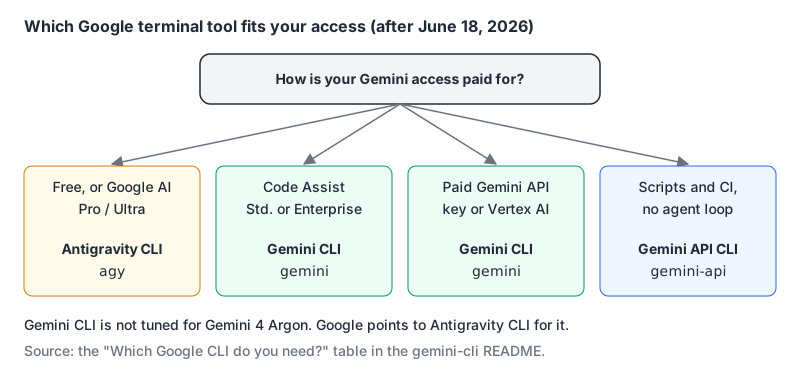
There's a second caveat in the same README: Gemini CLI is "Not tuned for the Gemini 4 series," and Google recommends Antigravity CLI for Gemini 4 Argon. So even with a valid licence, if you want Google's newest model you're pointed at a different tool.
If you're in the Gemini CLI column, read on. If you're not, skip to the Antigravity section near the end.
Install
Per the installation docs, you need Node.js 20 or later, and the recommended systems are macOS 15+, Windows 11 24H2+ or Ubuntu 20.04+.
npm install -g @google/gemini-cli     # or: brew install gemini-cli
gemini --version
There are three release channels: stable (latest, weekly), preview (weekly, "not fully vetted"), and nightly. The releases page shows v0.67.0 as the latest stable on November 4, 2026, which added a models command and a --list-models flag. Stick with stable unless you're chasing a specific fix.
Authenticate
The authentication docs list three methods. Pick based on how your organisation pays.
Sign in with Google is the route for Code Assist licences. Company, school and Workspace accounts need a Google Cloud project:
export GOOGLE_CLOUD_PROJECT="your-project-id"
gemini     # choose "Sign in with Google", finish in the browser
Gemini API key from Google AI Studio, billed per use:
export GEMINI_API_KEY="..."Vertex AI, using Application Default Credentials from gcloud, a service account key in GOOGLE_APPLICATION_CREDENTIALS, or a Google Cloud API key in GOOGLE_API_KEY. Vertex needs GOOGLE_CLOUD_PROJECT and GOOGLE_CLOUD_LOCATION, plus GOOGLE_GENAI_USE_VERTEXAI=true when you use an API key.
You can keep these in a .gemini/.env file instead of your shell profile. The docs warn that anything launched from a shell with exported keys can read them, which is a decent reason to prefer the .env file. Headless runs reuse a cached sign-in if there is one; otherwise they need the API key or Vertex variables.
Quotas, as Google's page states them
The quota and pricing page lists maximum requests per user per day. For the tiers that still use Gemini CLI:
| Access | Requests per user per day |
|---|---|
| Code Assist Standard | 1,500 |
| Code Assist Enterprise | 2,000 |
| Gemini API key, paid | Varies |
| Vertex AI, pay-as-you-go | Varies |
Per-minute limits exist but aren't published as numbers. Be careful with that page: it says "Last updated: Jun 18, 2026" and still shows rows for individual Code Assist, Google AI Pro and Ultra, and an unpaid API key, right under a banner saying those users moved to Antigravity CLI. I'd trust the banner and the blog post over the leftover rows.
Your first session
Run gemini in a project. Models default to auto; the CLI reference also accepts the aliases pro, flash and flash-lite via -m.
gemini -m flash
gemini -p "list the TODOs in src/ and group them by file" --output-format json
-p runs non-interactively, and --output-format takes text, json or stream-json, which makes it usable in scripts.
The setting I'd look at first is the approval mode. --approval-mode accepts default, auto_edit, yolo and plan. The old --yolo / -y flag is deprecated in favour of --approval-mode=yolo, so update any scripts that use it. Start in default or plan and loosen only once you trust the setup.
Turn on the sandbox
Sandboxing is opt-in. The sandbox docs list three ways to enable it, in order of precedence: the -s / --sandbox flag, GEMINI_SANDBOX=true|docker|podman|sandbox-exec|runsc|lxc, or "tools": {"sandbox": "docker"} in settings. On macOS, Seatbelt's default permissive-open profile confines writes to the project directory; stricter profiles such as strict-proxied are selected with SEATBELT_PROFILE. Docker and Podman use ghcr.io/google/gemini-cli:latest and mount your working directory. The native Windows mode changes directory integrity levels with icacls, and the docs note those changes persist after the session, so know that before you try it on your home folder.
GEMINI.md: give it the project rules
Gemini CLI reads context files named GEMINI.md and sends their combined contents with every prompt.
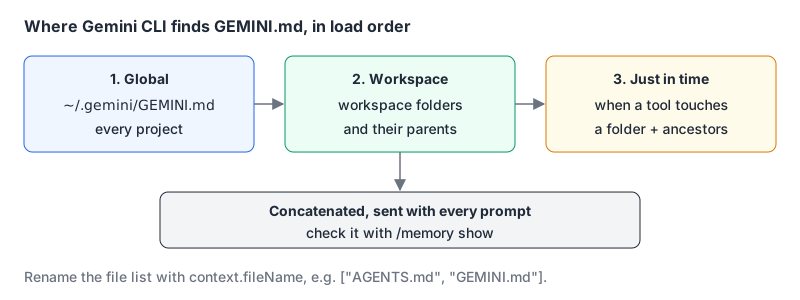
The GEMINI.md docs describe that order and two commands: /memory show prints the concatenated result, and /memory reload rescans. You can split a long file with @./docs/style.md imports.
If your repo already has an AGENTS.md for other agents, don't duplicate it. Point Gemini CLI at it in .gemini/settings.json:
{
  "context": {
    "fileName": ["AGENTS.md", "GEMINI.md"]
  }
}
That keeps one source of truth for a mixed team using Gemini CLI alongside tools like Claude Code; our Gemini CLI vs Claude Code comparison covers where the two differ.
MCP servers and extensions
Gemini CLI is an MCP client with config under mcpServers in settings.json. The MCP docs show the CLI helper:
# remote server over streamable HTTP, saved to the user scope
gemini mcp add --scope user --transport http docs-server https://api.example.com/mcp/

gemini mcp list
--scope defaults to project. Note the field names: command for stdio, url for SSE and httpUrl for streamable HTTP. Environment values can reference shell variables ("$MY_API_TOKEN"), which the docs recommend over hard-coding secrets. Remote servers that use OAuth are handled with /mcp auth <server>, and tokens land in ~/.gemini/mcp-oauth-tokens.json.
One setting to treat carefully: "trust": true skips confirmations for every tool on that server. Tool descriptions are untrusted text, and our post on MCP tool poisoning explains why auto-approving a whole server is risky. Use includeTools or excludeTools to narrow a server instead.
Extensions package things like custom commands and MCP server definitions; install one with gemini extensions install <git-url-or-path>. If you're new to MCP itself, start with what MCP is.
If you're an individual: Antigravity CLI instead
Antigravity CLI's download page lists v1.5.1, installed with curl -fsSL https://antigravity.google/cli/install.sh | bash on macOS and Linux or irm https://antigravity.google/cli/install.ps1 | iex in PowerShell. The command is agy. The migration guide says your GEMINI.md and AGENTS.md files work unchanged, and agy plugin import gemini converts extensions to plugins. MCP servers move out of settings.json into mcp_config.json (global ~/.gemini/config/mcp_config.json, workspace .agents/mcp_config.json), and remote entries use serverUrl instead of url or httpUrl. Workspace skills move from .gemini/skills/ to .agents/skills/. Google's blog post is upfront that there won't be "1:1 feature parity right out of the gate."
Setup checklist
- Confirm your access type first: Code Assist Standard or Enterprise, or a paid API or Vertex key. If not, install Antigravity CLI.
- Install the stable channel and authenticate; put keys in
.gemini/.env. - Run with
--approval-mode=planordefaultand turn on-ssandboxing. - Write a short
GEMINI.md, or pointcontext.fileNameat your existingAGENTS.md. - Add MCP servers with secrets in environment variables, and avoid
trust: true. - Replace any
--yoloin scripts with--approval-mode=yolo, and pin the CLI version in CI.
For how the tool compares on pricing and safety with the other terminal agents, see our Gemini CLI page and Gemini CLI vs OpenAI Codex.
Written by AIDToolStack Editorial
Researched from official documentation, specifications and vendor pages, listed under Sources below. Last checked November 2026.
Sources
- developers.googleblog.com/an-important-update-transitioning-gemini-cli-to-antigravity-cli/
- github.com/google-gemini/gemini-cli
- github.com/google-gemini/gemini-cli/releases
- geminicli.com/docs/get-started/installation/
- geminicli.com/docs/get-started/authentication/
- geminicli.com/docs/resources/quota-and-pricing/
- geminicli.com/docs/cli/cli-reference/
- www.geminicli.com/docs/cli/sandbox
- www.geminicli.com/docs/cli/gemini-md
- geminicli.com/docs/tools/mcp-server/
- antigravity.google/download
- antigravity.google/docs/cli/gcli-migration
Related Posts
Explore on AIDToolStack
Discover tools and servers featured in our directory.
AI Tools
MCP Servers
Sponsor Our Newsletter
Reach thousands of developers who are actively evaluating AI tools, MCP servers, and dev infrastructure. Our weekly newsletter goes to engaged technical decision-makers.
All sponsored content is clearly labeled per our editorial policy.