
Python Environments with uv: Projects, Lockfiles, Python Versions and Tools
A Python repo's README says: install Python 3.12, create a virtualenv, pip install -r requirements.txt. Three people follow it and get three environments, because one has 3.13 on their PATH, one forgot to activate the venv, and the requirements file pins nothing below the top level. uv attacks all three problems with one binary: it installs interpreters, creates environments, resolves and locks dependencies, and runs tools. Its docs position it as a replacement for pip, pip-tools, pipx, poetry, pyenv, twine and virtualenv.
As of November 2026 the current release is uv 0.13.7, published on 3 November (PyPI). It moves fast, and two recent releases changed defaults you'll notice:
- 0.12.0 (28 July 2026):
uv initcreates a packaged project by default, with auv_buildbuild backend, source undersrc/<name>/and a[project.scripts]entry, per the 0.12 changelog. The older flat layout withmain.pyis nowuv init --no-package. - 0.13.0 (9 October 2026): the default Python for downloads moved from 3.14 to 3.15, the cache format changed (so the first run after upgrading may re-download or rebuild packages), and
--require-hashesin included constraints files is now enforced (changelog).
A disclosure before the commands: uv isn't installed on the machine I wrote this on, so I couldn't run these myself. Every command and every output shown here comes from uv's own docs and changelog, linked where used.
The model: three files and two commands
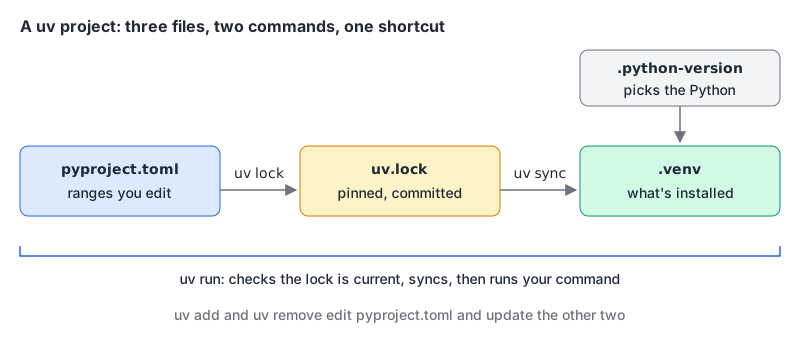
Once this picture clicks, the rest of uv is details:
pyproject.tomlholds what you asked for: ranges likehttpx>=0.27.2.uv.lockholds what you got. The projects guide describes it as a cross-platform lockfile of exact resolved versions, in human-readable TOML, that "should be checked into version control" and "should not be edited manually.".venvis what's installed, and you never need to touch it by hand.
uv lock goes from the first to the second, uv sync from the second to the third, and uv run does both checks before running your command.
Starting a project
uv init example
cd example
uv add httpx
uv add --dev pytest
uv run example        # the docs show: Hello from example!
uv run pytest
Per the init docs, that gives you .python-version, README.md, pyproject.toml and src/example/__init__.py, and uv add creates .venv and uv.lock on first use. The dependencies page shows what lands in pyproject.toml: runtime packages go in [project] dependencies with a lower bound at the version uv resolved, and --dev packages go into a PEP 735 dependency group:
[project]
name = "example"
version = "0.1.0"
dependencies = ["httpx>=0.27.2"]

[dependency-groups]
dev = ["pytest>=8.1.1,<9"]

[build-system]
requires = ["uv_build>=0.13.0,<0.14"]
build-backend = "uv_build"
(The version numbers above are the docs' examples, not recommendations; the uv_build bound is the one the 0.13 changelog suggests.) If you hand-edit this file, our TOML formatter parses it as TOML 1.0, reports the first error (such as a duplicated key or table) and aligns the keys. It checks syntax, not what the settings mean, so let uv have the final word.
Migrating an existing project is one command: uv add -r requirements.txt imports the lot.
lock, sync and run in practice
| Command | What it does |
|---|---|
uv lock | Resolve pyproject.toml into uv.lock |
uv lock --upgrade-package httpx | Bump one package, keep everything else pinned |
uv sync | Make .venv match the lockfile exactly, removing anything extra |
uv run <cmd> | Check the lock is current, sync without removing extras, then run |
uv run --locked <cmd> | Fail if uv.lock is out of date instead of updating it |
uv run --frozen <cmd> | Use the lockfile as-is without checking it |
uv sync --no-dev | Skip the dev group, which is otherwise synced by default |
The sync docs cover the exact-versus-inexact detail: uv sync removes packages that aren't in the lock, uv run doesn't unless you pass --exact. In CI, --locked is the one you want, because a lockfile that doesn't match pyproject.toml should fail the build rather than quietly change.
The same page lists the export formats: uv export --format requirements.txt for tools that still want one, --format pylock.toml for the standard lock format from PEP 751 (final since March 2025), and --format cyclonedx1.5 for an SBOM. If that last one is new to you, Generating an SBOM explains what to do with it.
Python versions without pyenv
uv python install 3.14     # latest 3.14.x
uv python pin 3.14         # writes .python-version
uv python list --only-installed
From the Python versions docs: managed CPython builds come from Astral's python-build-standalone project, and downloads are automatic by default when a command needs a version you don't have. The default python-preference is managed, but an existing system Python still beats downloading a new one. Set python-downloads = "manual" if you'd rather uv never fetch interpreters on its own.
That 0.13 change to 3.15 as the default matters for anything with compiled dependencies. Python 3.15 was released on 9 October 2026 (python.org), and packages with compiled extensions need wheels built for each new Python version, which can take a while to appear. Our local LLMs post, for example, notes vLLM's install docs list Python 3.11 to 3.14. Pin explicitly in projects like that: uv python pin 3.14, or uv venv --python 3.14 for a plain environment.
Plain venvs and the pip interface
Not every repo needs to become a uv project. For an existing requirements.txt workflow, uv is a faster drop-in (environment docs):
uv venv                     # creates .venv
source .venv/bin/activate
uv pip install -r requirements.txt
One difference from pip: uv requires a virtual environment by default, and installing into the system Python needs an explicit --system. When you don't activate anything, uv looks for VIRTUAL_ENV, then CONDA_PREFIX, then a .venv in the current or nearest parent directory. That rules out the classic mistake of installing into the global interpreter by accident.
Tools: uvx and uv tool install
uvx is short for uv tool run, and it runs a command-line tool in a temporary, isolated environment (tools guide):
uvx ruff check                    # run without installing
uvx ruff@latest check             # force the newest version
uvx --from httpie http            # package and command names differ
uv tool install ruff              # keep it on your PATH
uv tool upgrade --all
The @ form only takes an exact version or latest; use --from 'ruff>0.2.0,<0.3.0' for ranges. The rule for uvx versus uv run: if the tool needs to import your project, as pytest and mypy do, use uv run so it sees your environment. Formatters and linters that only read files are fine with uvx.
You'll also see uvx as the launcher for Python MCP servers. The custom MCP server walkthrough installs the SDK with uv add "mcp[cli]" and shows servers published to PyPI being run with uvx.
Single-file scripts with inline metadata
For a one-off script, a whole project is overkill. PEP 723 (final, now maintained as the PyPA "Inline script metadata" spec) lets the script declare its own dependencies in a comment block, and uv reads it (scripts guide):
#!/usr/bin/env -S uv run --script
# /// script
# dependencies = [
#   "httpx",
#   "rich",
# ]
# ///
import httpx
from rich import print

print(httpx.get("https://pypi.org/pypi/uv/json").json()["info"]["version"])
chmod +x it and run it directly, and uv sets up the environment the block describes. uv add --script fetch.py rich writes the block for you, and uv lock --script fetch.py creates fetch.py.lock beside it. For long-term reproducibility without a lockfile, the guide shows exclude-newer in a [tool.uv] section of the block, which ignores anything published after a given timestamp.
CI on GitHub Actions
uv's GitHub integration guide recommends pinning actions to commit SHAs and pinning the uv version. Its steps boil down to:
steps:
  - uses: actions/checkout@3d3c42e5aac5ba805825da76410c181273ba90b1 # v7.0.1
  - uses: astral-sh/setup-uv@c771a70e6277c0a99b617c7a806ffedaca235ff9 # v9.0.0
    with:
      enable-cache: true
  - run: uv python install
  - run: uv sync --locked --all-extras --dev
  - run: uv run pytest
The guide says that bare uv python install "will respect the Python version pinned in the project," so CI and laptops get the same interpreter. More on caching and matrix builds is in GitHub Actions CI/CD patterns.
Checklist for a uv-managed repo
- Commit
pyproject.toml,uv.lockand.python-version. Don't commit.venv. - Pin Python explicitly if any dependency has compiled extensions, at least until 3.15 wheels catch up.
- Put test and lint tools in the
devgroup; useuvxfor one-off tools. - Use
uv sync --locked(oruv run --locked) in CI. - Upgrade one package at a time with
uv lock --upgrade-package, and review theuv.lockdiff. - Export
pylock.tomlorrequirements.txtonly when another installer needs it.
Written by AIDToolStack Editorial
Researched from official documentation, specifications and vendor pages, listed under Sources below. Last checked November 2026.
Sources
- docs.astral.sh/uv/
- pypi.org/project/uv/
- github.com/astral-sh/uv/blob/main/CHANGELOG.md
- github.com/astral-sh/uv/blob/main/changelogs/0.12.x.md
- docs.astral.sh/uv/guides/projects/
- docs.astral.sh/uv/concepts/projects/init/
- docs.astral.sh/uv/concepts/projects/dependencies/
- docs.astral.sh/uv/concepts/projects/sync/
- docs.astral.sh/uv/concepts/python-versions/
- docs.astral.sh/uv/guides/install-python/
- docs.astral.sh/uv/pip/environments/
- docs.astral.sh/uv/guides/tools/
- docs.astral.sh/uv/guides/scripts/
- docs.astral.sh/uv/guides/integration/github/
- peps.python.org/pep-0723/
- peps.python.org/pep-0751/
- www.python.org/downloads/
Related Posts
Explore on AIDToolStack
Discover tools and servers featured in our directory.
AI Tools
MCP Servers
Sponsor Our Newsletter
Reach thousands of developers who are actively evaluating AI tools, MCP servers, and dev infrastructure. Our weekly newsletter goes to engaged technical decision-makers.
All sponsored content is clearly labeled per our editorial policy.